
Overview
The Benchmarking feature enables organisations to analyse their environmental and operational data relative to key business metrics.
Applying benchmarks to a supported report will divide the metrics by relevant benchmark values. Output columns display intensity-based measurements allowing normalised comparisons across facilities of different sizes and types. These values can also be compared for individual facilities or in aggregate across different reporting periods.
Trellis customers use these normalised measurements to facilitate a range of further outcomes, including:
-
comparisons through space and time within their own inventory
-
external comparison with sector or industry metrics and targets
-
monitoring and measuring progress towards targets
-
investigation of sensitivities, model development and hypothesis generation
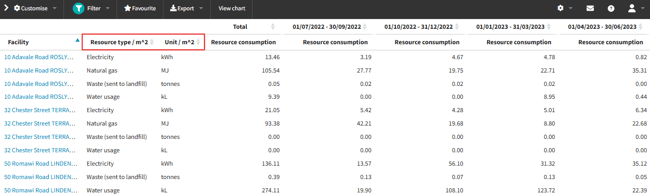
Example Periodic Report comparing quarterly Consumption per m^2 for each facility per resource
Reporting Capabilities
-
Flexible date range selection
-
Multiple benchmark options per report
-
Automated calculations and prorating
-
Export functionality
-
Customisable views and filters
How to Set Up and Use Benchmarks
Accessing Benchmarks
-
Click on "Structure" in the main sidebar menu
-
Select "Benchmarks" from the submenu options
When accessing the Benchmarks page, you'll either see:
-
A blank screen with "No benchmarks found" message (for new setups)
-
Or a list of previously created benchmarks (for existing setups)
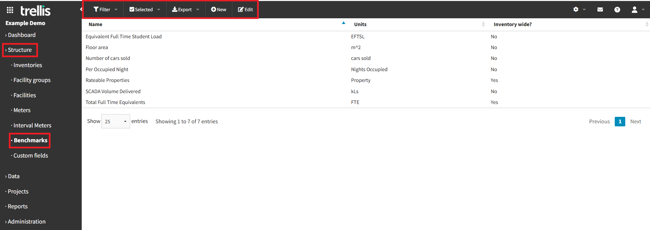
Top Navigation Bar Functionalities
-
Filter – Access advanced filtering options for your benchmarks

-
Selected – Enables bulk deletion of selected benchmarks
Note: Deleting a benchmark will automatically delete all the related benchmark data.
-png.png?width=650&height=132&name=image-20250519-054624%20(1)-png.png)
-
Export – Extract All or Filtered Benchmarks
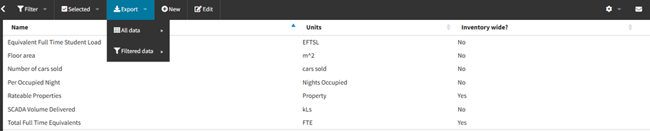
-
New – To create new benchmarks:
-
Benchmark Name: Clear, descriptive identifier
-
Measurement Unit: Specific unit of measurement for your reference (e.g., m^2, FTE)
-
Benchmark Scope: Choose between:
-
Facility-specific values (individual facility benchmarks you will define separately)
-
Inventory-wide values (organisation-wide benchmarks)
-
-
Permission Settings: Configure access levels for different user groups:
-
Viewer
-
User
-
Manager
-
Custom group permissions
-
-
Note: There are no limitations on benchmark naming and unit selection, so please ensure consistency and accuracy based on your needs while creating new benchmarks.
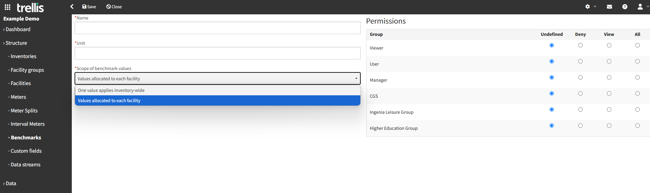
-
Edit – Modify the details or settings of an existing benchmark
Benchmark examples commonly used by Trellis customers include but are not limited to:
-
Floor area (m^2) - For space-based intensity metrics
-
Total Full Time Equivalents (FTE) - For per-person consumption metrics
-
Equivalent Full Time Student Load (EFTSL) - For educational institutions
-
Number of cars sold (Cars Sold) - For automotive industry metrics
-
Per Occupied Night (Nights Occupied) - For accommodation facilities
-
Rateable Properties (Property) - Local government metrics
How to Set Up Benchmark Data
Every benchmark relies on base values (Benchmark Data) being defined for it in order to generate meaningful comparisons:
Accessing Benchmark Data
-
Click on "Data" in the main sidebar menu
-
Select "Benchmark data" from the submenu options
When accessing the Benchmark data page, you'll either see:
-
A blank screen with "No benchmark values found" message (for new setups)
-
Or a list of previously created benchmark data (for existing setups)
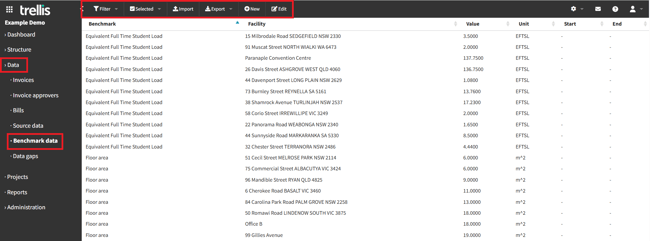
Top Navigation Bar Functionalities
-
New – To create new benchmark data:
-
Benchmark: Select from the list of benchmarks you created
-
Facility (mandatory if “Scope of benchmark values” has been set to “Values allocated to each facility”): Select the specific facility that the benchmark value applies to.
-
Value: Input the value of your benchmark. Eg this specific facility has a Floor Area of 420 m^2, or the Inventory-Wide Floor Area is 3,205 m^2.
-
Start & End Date: Leave blank for open-ended
-
Notes: Optional description for your future reference
-
Permission Settings: Configure access levels for different user groups:
-
Viewer
-
User
-
Manager
-
Custom group permissions
-
-
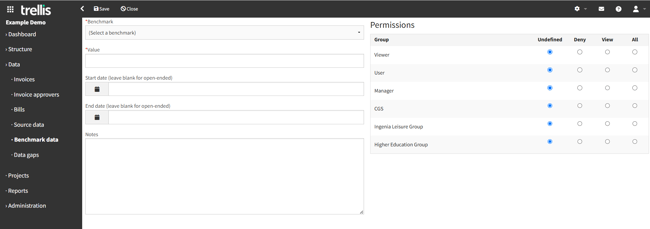
Note: If benchmark data is not defined, the calculated columns in reports using the benchmarking feature will be blank.
-
Filter – Access advanced filtering options for your benchmark data

-
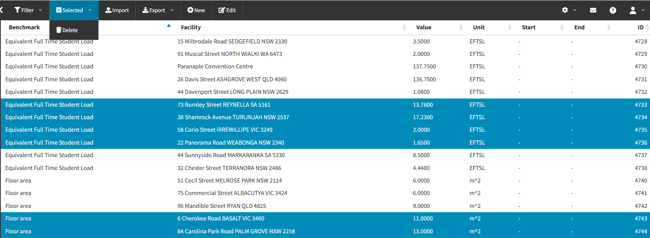
Selected – Enables bulk deletion of selected benchmark data
*hold down CTRL on your keyboard to select multiple line items simultaneously
-
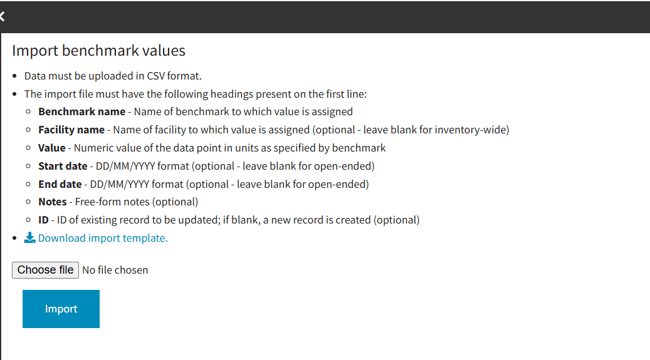
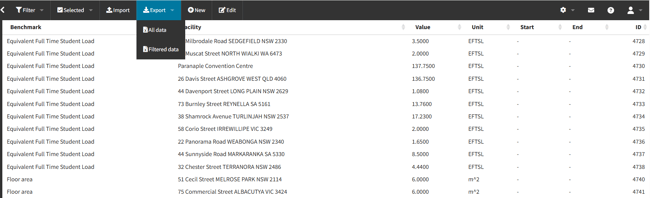
Import – Bulk import benchmark data using the template provided
-
Export – Extract All or Filtered Benchmark data
-
Edit – Modify the details or settings of an existing benchmark data
How to Use Benchmarks to Enrich Reports
After creating your required benchmarks and benchmark data, you can start implementing them in your Reports.- Summary, Electricity Production and Periodic Reports currently support benchmarking
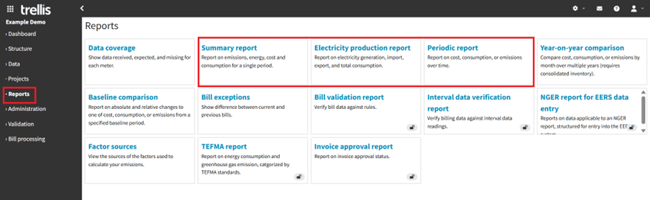
Applying Benchmarks in Summary Reports for instance:
-
Open the desired report
-
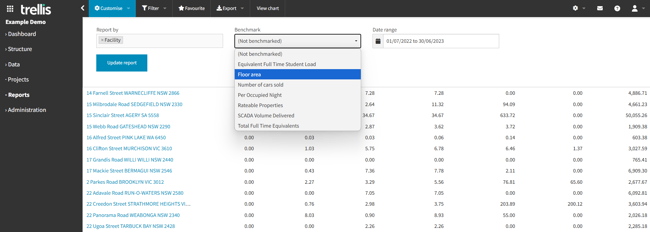
Navigate to "Customise" using the top bar
-
Select the appropriate benchmark from the dropdown menu
-
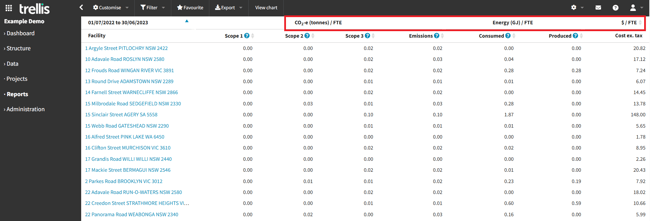
The updated report will display values normalised by the selected benchmark
How Benchmarks are Calculated
Basic Calculation Principle
All metrics are divided by their corresponding benchmark values to produce intensity metrics:
-
Formula: Metric Value ÷ Benchmark Value = Benchmarked Result
-
Example: A facility consuming 100 kWh with a floor area benchmark of 50 m² yields 2 kWh/m²
Complex Calculations
Time Period Handling – When reporting periods intersect with multiple benchmark values, the system employs an averaging method to calculate the final benchmark value:
-
The system takes a basic average of all benchmark values that intersect with the reporting period
-
Each benchmark value that intersects with the reporting period is weighted equally, regardless of the duration of intersection
-
Even a single day of intersection will include that benchmark value in the average calculation
-
Example – If a facility has the following benchmark values:
-
50 m² (July 2022 - December 2022)
-
60 m² (January 2023 - June 2023)
-
When reporting for this period, the system will:
-
Identify all intersecting benchmark values (50 m² and 60 m²)
-
Calculate the simple average: (50 + 60) ÷ 2 = 55 m²
-
Apply this average benchmark value to the entire reporting period
Important Notes
-
This approach is generally effective as benchmark values are typically set on annual cycles (financial or calendar year)
-
Most common averaging scenarios occur when reporting across different yearly periods (e.g., calendar year report for financial year benchmarks)
Note: To understand more about this functionality and get it enabled, please contact our team on support@yourtrellis.com