
Accessing Notification Settings
- Click on your profile icon in the top-right corner of the dashboard.
- Select Notification Settings from the dropdown menu.
Emails
You will receive an email when you have unread notifications, new invoices that require approval, and invoices that are close to due date and require action on approval. You also have the option to change frequency or turn off this service via your notification settings. The emails will link you to your Trellis inbox.
-png.png?width=670&height=240&name=image-20250612-105007%20(1)-png.png)
Inbox
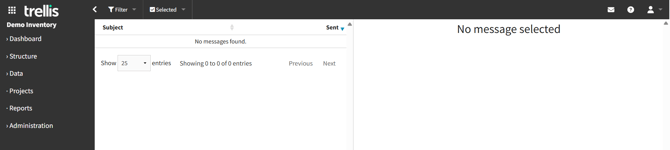
You can view notifications by clicking the letter icon in the top menu bar. This will show your Trellis inbox.
Configuring Your Notifications
Notification Frequency
- Choose a frequency that aligns with your needs, billings cycles, and data updates.
- Setting a higher frequency (daily, weekly) means that you will receive Trellis notifications or emails sooner, and in greater quantity. In contrast, setting a lower frequency (monthly) will result in a tabular summary report.
- You can modify this setting anytime if your requirements change. To turn off a notification, choose 'off' in the 'frequency' drop down.
Notification Types
- Enable any of the email alerts and in-app Trellis notifications as needed.
- For infrequent users, we highly recommend turning on "Email alerts for unread Trellis notifications" to ensure important messages are not missed.
Find out more about each notification type here.
Finalising Your Settings
Make sure to save the changes at the end, and your notification preferences will be updated automatically. You can revisit the Notification Settings page at any time to make further adjustments.