
Introduction
File Status is an overview page in the Trellis Web App providing visibility into the processing journey of files received in the system. It offers near real-time status and processing information of where a file is in the Trellis ingestion and allocation pipelines. You can use File Status to verify if and when Trellis has received an expected file by filtering for its original file name.
Accessing File Status
-
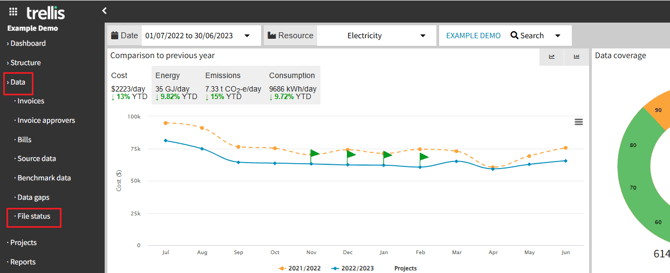
Navigate to the “Data” tab from the side bar
-
Click on “File Status”
-
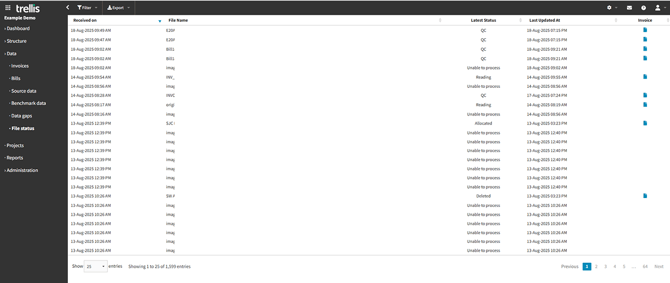
View the list of all the files received
Note: If you cannot see File Status, confirm your user role / permissions with an administrator or contact our support team.
Main Display Grid
-
Received on: Date and time the file was received by Trellis
-
File Name: Original name of the supplied file
-
Latest Status: Current processing stage (see status definitions below)
-
Last Updated At: Timestamp of most recent status change
-
Invoice Link: Direct access to processed files. *Visible only for files that have reached “allocated” stage.
Navigation and Controls
-
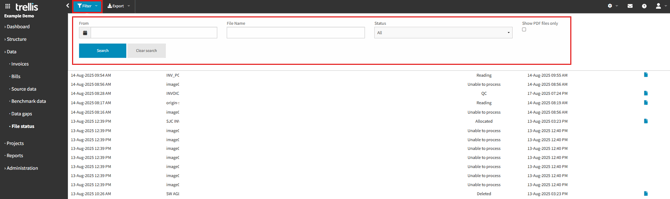
Filters
-
From – Filter for files received after a certain date
-
File name – Search for a specific file to check its status. Partial matches are supported and all the files including that search will be displayed.
-
Status – Filter by a specific file status
-
PDF only check box – Select to display only PDF uploads.
-
If a file is received multiple times, you may find different entries for it, where one version is "Allocated", one might be "Excluded" as a duplicate, and others could appear stuck in earlier stages like "Reading".
To see the complete picture, search for the full file name without any filters. Only one version of a file should be allocated to your inventory. If you're concerned about a file's status, check if a successful version exists before raising it with support
If the file you are looking for does not appear in Trellis, it means the system has not received it yet. Allow some time for file intake and system updates, and then check if it was successfully sent from the source system.
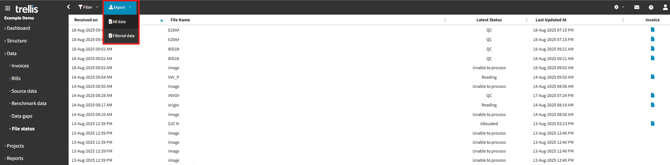
- Export options – Choose to export all or filtered data only, as a csv
Status Definitions
Acquired
-
Meaning: The file has arrived to our pipeline; the system is analysing file contents and acquiring the data it needs.
-
Potential Reasons for Delay: High queue volumes; very large files that would need splitting; encrypted or password‑protected files.
-
Contact support if: A file displays this status for more than 5 business days and is not a Special Case*.
Special Case - For zipped or large consolidated files, the original container (source) file will always remain at “Acquired” status. This is expected behavior and indicates successful extraction of the contained files. Each individual file acquired will have its own File Status that can be monitored individually.
Reading
-
Meaning: Data from the extracted content is currently being interpreted.
-
Potential Reasons for Delay: Complex layouts, or unusual vendor templates. Keep in mind, scanned files are usually excluded and the original pdf needs to be submitted.
-
Contact Support if: A file displays this status for more than 5 business days and is not a Special Case*.
Special Case - Unsupported file formats received, low quality or lack of content, etc. If the file fails to pass this stage for technical reasons it would be moved to “Unable to Process” stage.
Quality Check
-
Meaning: Automated / assisted validation is running. CS may reach out if there are issues requiring your input or action
-
Possible Outcomes: Proceeds to “Allocated” (see below), or flagged to “Unable to Process” (see below)
-
Contact Support if: A file displays this status for more than 5 business days
Allocated
-
Meaning: Processing completed successfully. Data will now be visible in the inventory.
-
System Effect: Downstream objects are created / updated. Invoice link appears in the grid.
Unable to Process
-
Meaning: The system rejected the file (technical / format / content reasons) or it failed validation.
-
Possible Causes:
-
Blacklisted file types (e.g., .png, .jpg, other image formats) are not supported.
-
Unsupported / unknown files that do not match any recognised provider or resource type in the system. To avoid this, make sure you notify us of changes to providers, or any notable changes in the files since the last processed bill.
-
Corrupt or password protected files.
-
-
Action:
-
Convert images to machine readable PDF (export from the source system rather than scanning)
-
For zip uploads, upload the individual supported files directly.
-
Verify the file is complete, not corrupted and remove any passwords.
-
If still failing, contact support and provide the “File Name” and “Received on” timestamp.
-
Excluded
- Meaning: A file was removed by support before final allocation to inventory. This usually occurs because the file was identified as a duplicate. The entry remains visible in File Status for audit and history purposes.
- Contact support if: You believe a file was excluded in an error or need it restored.
Workflow Overview
The file processing system follows a dynamic workflow with multiple stages. Some steps in the workflow may be skipped if not required based on the specific file type and processing requirements.
-jpg.jpeg?width=670&height=201&name=File%20Status%20Doc%20(1)-jpg.jpeg)
Note: To understand more about this functionality and get it enabled, please contact our team on support@yourtrellis.com