
Overview
Interval Data is an add-on feature for Trellis allowing ingestion, display and reporting of detailed electricity usage data provided from smart meters in NEM12 format.
Enabling Interval Data will grant access to an additional dashboard in the Trellis web-app displaying detailed charts showing consumption patterns over time (30 minute intervals by default).
Interval Data Verification Reports complement the dashboard graphs, allowing you to validate billed consumption against interval data readings captured in Trellis.
This feature is a useful tool for energy management, offering detailed insights into consumption patterns and supporting informed decision making for cost optimisation and sustainability initiatives.
How to use Interval Data in Trellis
Setup and Configuration
Interval Data set up requires specific configuration for each applicable meter.
Once set up, Interval Data will automatically be ingested into Trellis and made available in the dashboard as it’s received.
Our support team will guide you through the set-up and configuration process.
The minimum requirements for Interval Data to be configured are:
-
Valid National Electricity Market 12 (NEM12) format files
-
Correct National Meter Identifier (NMI) references and meter mapping ready in your Trellis inventory structure
NEM12 formatted data files can be provided for ingestion through the following methods:
-
Direct email submission to your dedicated data mailbox (e.g., client@data.yourtrellis.com
-
Automated SAPN portal downloads
-
Manual NEM12 file submissions (not recommended for ongoing regular data ingestion)
NEM12 is a standardised data format specifically designed for the Australian energy market to record and share interval metering data. This format contains detailed electricity consumption readings typically collected in 15 or 30-minute intervals throughout the day. The format follows strict rules set by the Australian Energy Market Operator (AEMO) and includes essential information such as the meter identifier (NMI), reading times, consumption values, and quality flags.
While you might receive electricity data in various formats from your provider's portal, the NEM12 format is the industry standard that providers are legally required to supply upon request.
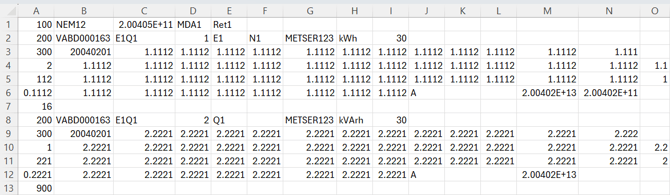
Example of an accepted NEM12 data format extract from the AEMO website:
The first two values in a NEM12 file will always be “100” and “NEM12”
Navigating the Interval Data Dashboard
Data View Options
-
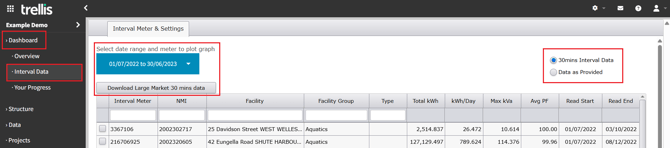
Navigate to the Interval Data tab from Dashboard. On this page you will see:
-
Date range selector (if there is no data displayed when you load the page, modify the selection to a date range that has interval data associated with it)
-
Large Market data download option - Download your 30min interval data in a csv file
-
Toggle between:
-
30-mins Interval Data
-
Data as Provided
-
-
Meter List Display
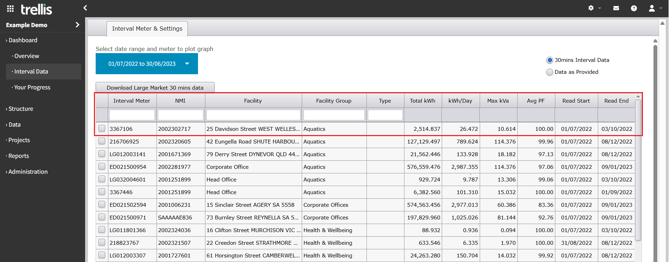
This table displays comprehensive meter information including:
-
Interval Meter ID and NMI
-
Facility details and grouping
-
Type classification (eg Large Market)
-
Usage metrics:
-
Total kWh
-
Daily consumption (kWh/Day)
-
Maximum demand (Max kVA)
-
Average power factor (Avg PF)
-
Reading period (Start/End dates)
-
Select a meter from the list to load detailed usage graphs for further analysis.
For more info about any of the above refer to the Technical Foundation section
Analysis Tools
Once you select a meter from the list, additional tabs will become available in the view - selection has a maximum limit of 3 rows.
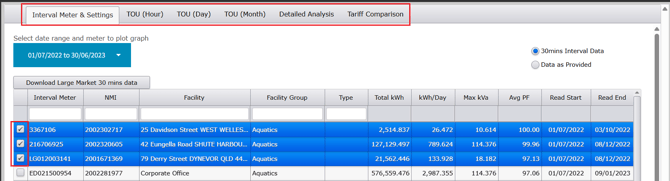
Time of Use (TOU) Analysis is available in three views:
-
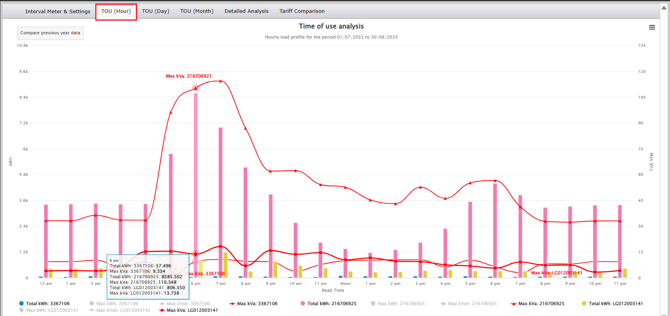
Hourly Analysis
-
Granular consumption patterns
-
24-hour usage cycles
-
Peak demand identification
-
-
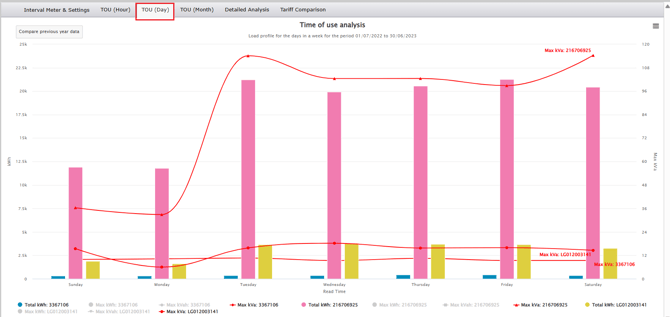
Daily Analysis
-
Day-over-day comparisons
-
Weekly pattern recognition
-
-
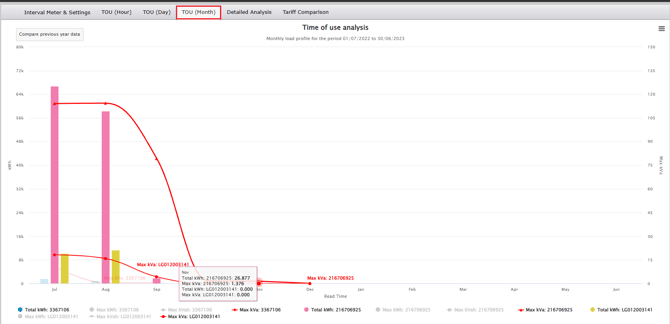
Monthly Analysis
-
Long-term trend visualisation
-
Seasonal pattern identification
-
Aggregated consumption analysis
-
In all the three Time of Use views, you will see:
-
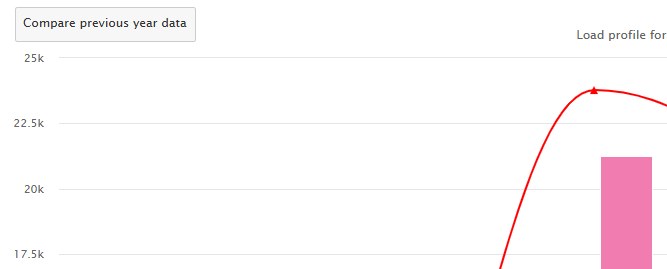
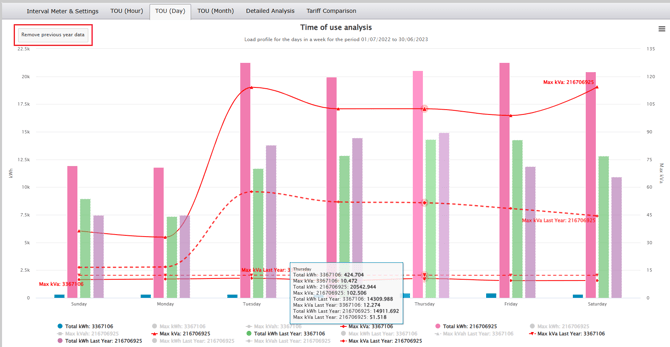
A “Compare previous year data" button, that enables year-over-year comparison. Once clicked and the Y-o-Y comparison is active, the button changes to "Remove previous year data" allowing you to toggle between single-year and comparative views.
-
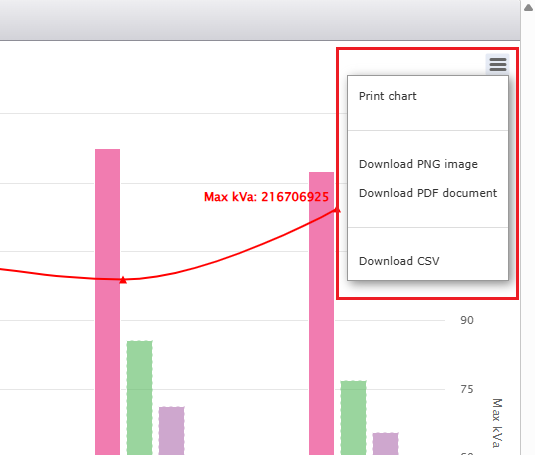
An export option is available that will allow you to download the chart and the data associated with it in different formats
Detailed Analysis Tab
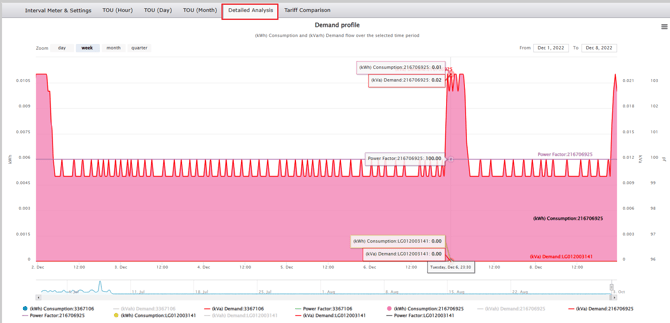
This tab displays continuous data at the selected and available granularity, and allows for:
-
Interactive demand profile visualisation
-
Consumption and demand flow tracking
-
Power factor monitoring
-
Zoom levels: day, week, month, quarter
-
Date range selection (From-To)
Checking Linked Interval Meters
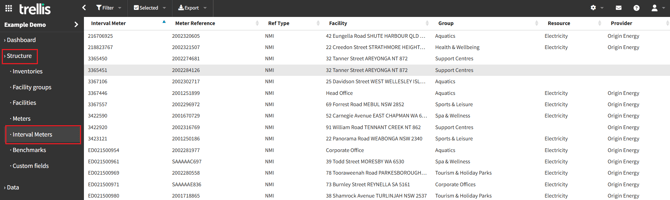
The Interval Meters tab, located under the Structure menu, displays the connection between meter references and their corresponding NMIs and facilities.
-
The Trellis system automatically maintains relationships between the interval meter and the inventory meter reference. This occurs through reading the NEM12 interval data files which contain mapping of meter numbers to NMIs.
-
When NEM12 interval data files are processed, the system automatically establishes links with the meter references and lists them on this page, eliminating the need for manual entry or configuration to set up interval meter ingestion.
-
View all interval meters, their associated facilities, groups, resources, and providers in a streamlined table on this page.
-
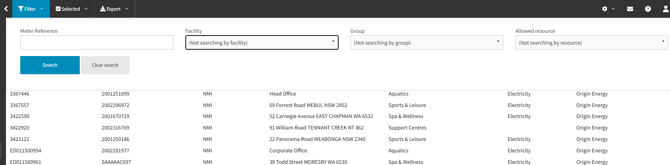
Use the “Filter” functionality to lookup a specific meter reference, facility, facility group, or resource.
-
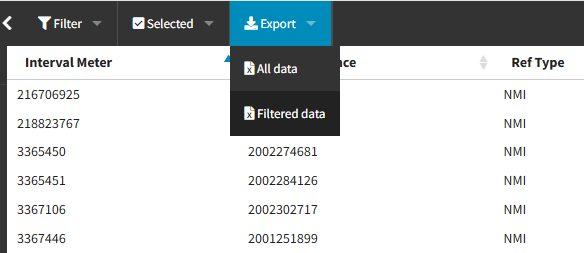
You can then export all data, or just your filtered data using the “Export” functionality.
Interval Data Verification Report
Use this report to cross-check billing data with interval readings to ensure you have been billed correctly.
-
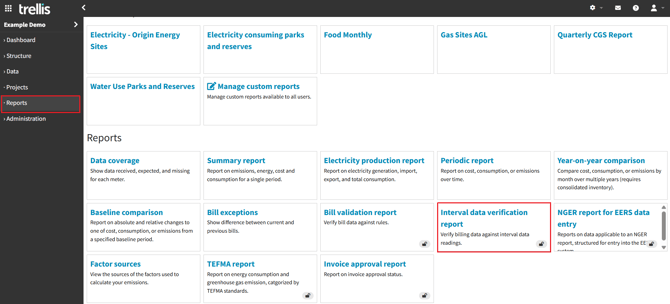
Navigate to this report using the “Reports” tab
-
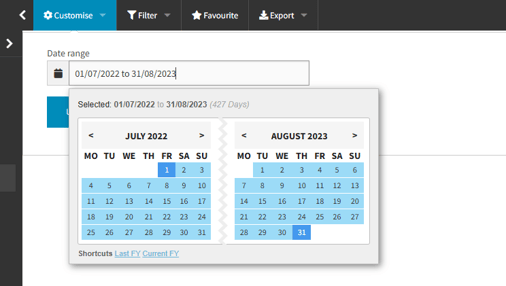
If the “No records found” message is displayed on your first load, modify the date range using “Customise” to select a range that you have interval data available for.

-
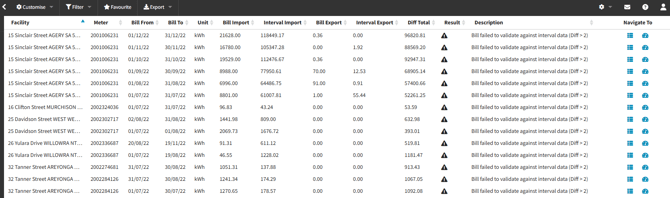
This report displays:
-
Facility and meter reference
-
Bill from and to date range
-
Bill Import - Electricity imported from the grid as reported on your utility bill
-
Interval Import - Electricity imported from grid as measured by interval meter
-
Bill Export - Electricity exported to grid as reported on the bill
-
Interval Export - Electricity exported to grid as measured by interval meter
-
Diff Total - Shows the discrepancy between these measurements
-
Comparison results and description
-
Navigate To - Direct link to the source data and interval dashboard for each meter
-
-
Use the “Filter” functionality to look for a specific facility, meter, or any difference total greater than a specific amount

-
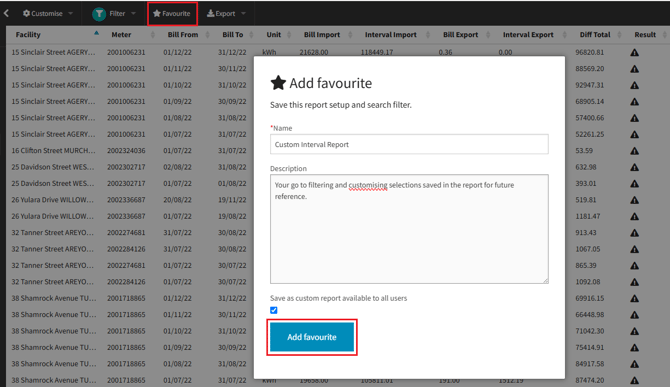
Use the “Favourite” functionality to save your desired “customise” and “filter” selections for future reference.
-
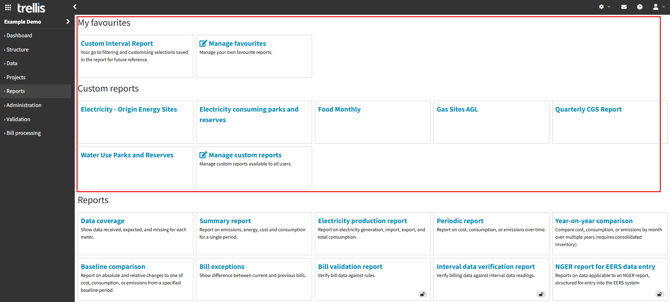
Checking the box to “Save as custom report available to all users” will add the report under the “Custom reports” section in report.
-
Not checking the box means the report will only be displayed to you under the “My favourites” section in Reports.
-
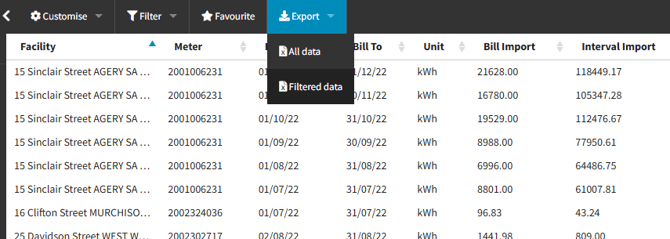
Use the “Export” functionality to export all, or just your filtered data at any time.
Using the above functionalities you can:
-
Validate billing accuracy
-
Identify potential metering and billing issues
-
Highlight significant variations requiring investigation
Bonus Reading: Technical Foundation
For effective use of the interval data feature, it's useful to understand these key electrical metrics:
kVA (Kilovolt-Amperes)
-
Measures apparent power
-
Represents total power in use within a system
-
In a 100% efficient system: kW = kVA
kW (Kilowatt)
-
Represents actual/working power
-
Indicates useful power output
Power Factor
-
Measures electrical efficiency (0 to 1)
-
Closer to 1 indicates better efficiency
-
Used to convert between kVA and kW
-
Critical for demand analysis and billing validation
To understand more about this feature and get it enabled, please contact our support team on support@yourtrellis.com