
Overview
The Invoice Approval functionality enables a streamlined, lightweight workflow for reviewing invoices before payment. This feature is suitable for organisations with multiple people responsible for accounts requiring delegation of approvals. It provides visibility into invoice status and allows approvers to be assigned to specific metering references.

If you would like access to this functionality, our support team can help you to get it enabled.
Key Points Covered
Filter for Invoices Requiring Approval
Assigning Invoice Approvers
Invoice approvers are linked to specific metering references. These approvers will be responsible for approving invoices associated with their assigned meters. Once the Invoice Approval feature is enabled, any user can assign approvers.
-
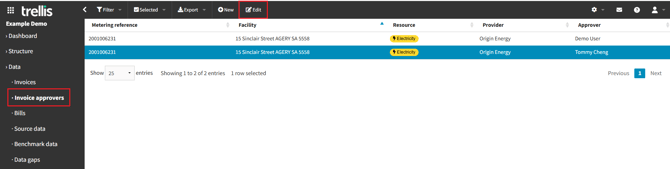
Navigate to: Data → Invoice Approvers
-
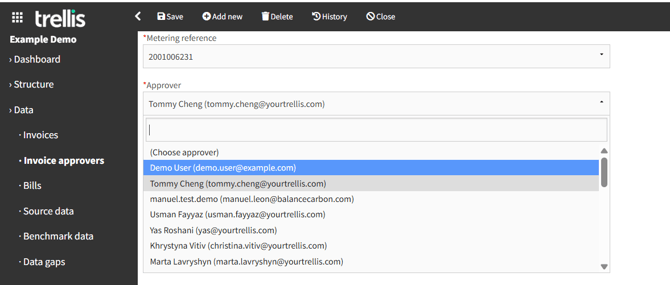
Select “Edit” to update an existing approval details or or select “New” to create a new one.
-
Update the meter or approver details as needed. You can also assign multiple approvers to a single meter.
-
Currently, approvers must be assigned one meter at a time.
-
Approvers can be removed by selecting them from the list and using the delete function.
Note: Not all meters need approvers. Typically, approvals are used for utility invoices linked to facilities, where a designated person is responsible. Other meter types, like flights, are often excluded from this workflow.
Approval Status Tracking
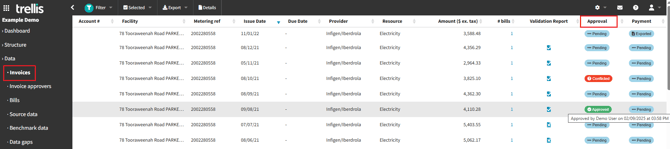
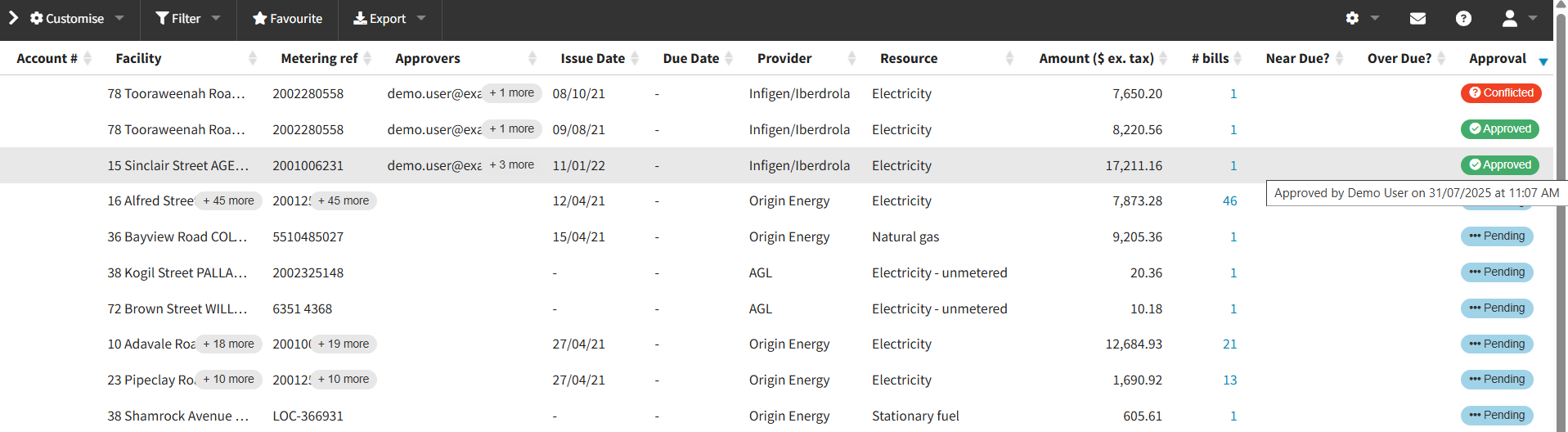
If you have the Invoice Approval feature enabled, an Approval Status column will be visible on the Invoices Browse page. The status options include:
-
 Pending - No approvals have been made yet.
 -
 Approved - At least one approver has approved the invoice.
 -
 Rejected - At least one approver has rejected the invoice.
 -
Conflicted - Multiple approvers have provided conflicting responses. This status requires customers to resolve the conflict internally. Trellis does not send a prompt or take action.
Tip: Hovering over the status will display a tooltip with the name of the approver and the date/time of their action.
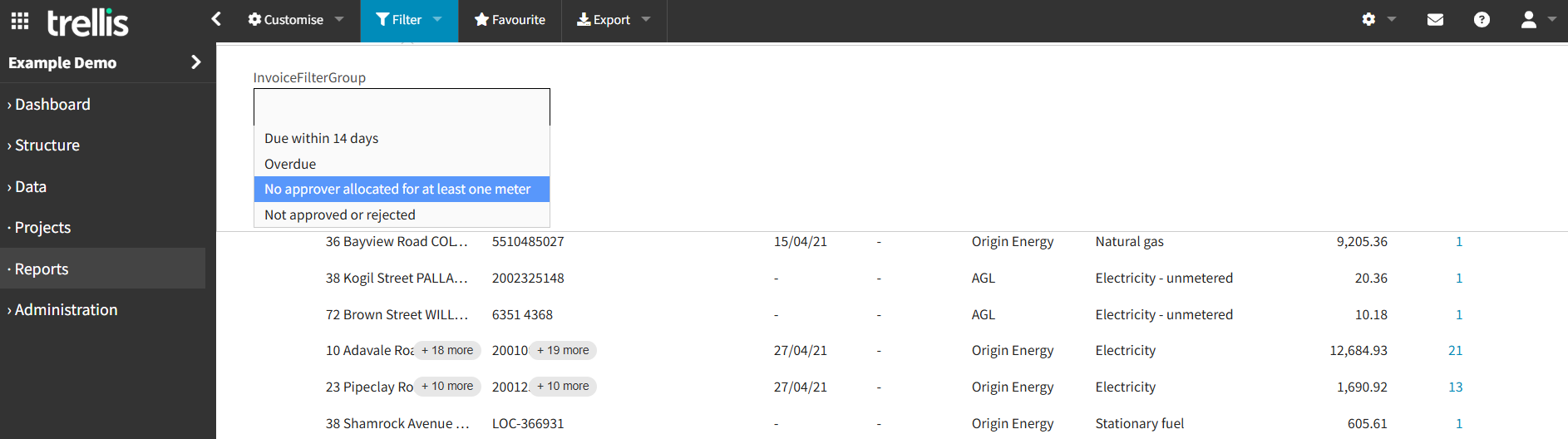
Filter for Invoices Requiring Your Approval
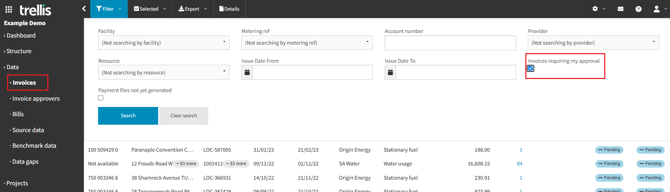
If you are assigned as an approver for any meters, an additional filter check box “Invoices Requiring My Approval”, will appear in the Invoices page filter drop down. Use this checkbox to filter the list of invoices to show only invoices which:
-
you are assigned as an approver for; and
-
the invoice has a current status of Pending
Taking Actions in the Invoice Details Page
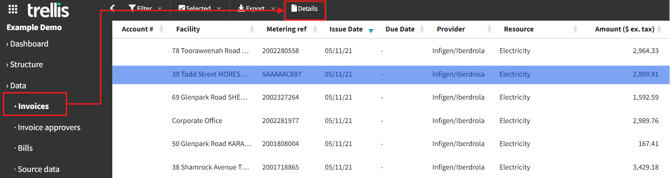
To view the Invoice Details Page for any invoice, select it in the Invoices view and click the “Details” button in the contextual navigation bar at the top of the page.
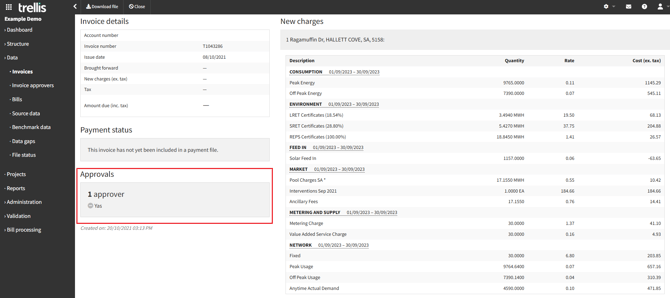
If the invoice is linked to a meter with assigned approvers:
-
The current Approval Status is displayed on the invoice details page in the bottom left of the window.
-
The status and names of approvers are visible to anyone who has access privileges to view invoices.
-
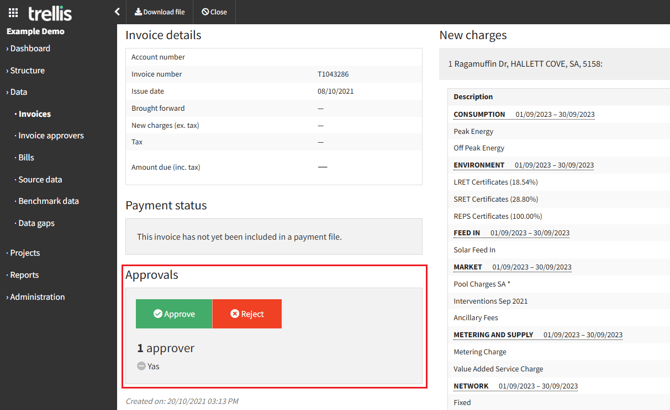
If you are an Approver for this invoice (nominated in the associated meter), you will see “Approve” and “Reject” buttons on the invoice details page, allowing direct action.
-
You can modify the status from the details page any time, including changing the status from “Approved” to “Rejected” or vice versa.
ℹ️ What happens after an invoice is approved or rejected?
-
The approval status appears on the Invoices page, the Invoice Details page, and the Payment File Summary / Confirmation page (if Payment File Generation is enabled).
Report on Invoice Approval Status
Access the invoice approval report by navigating to the “Reports” section.
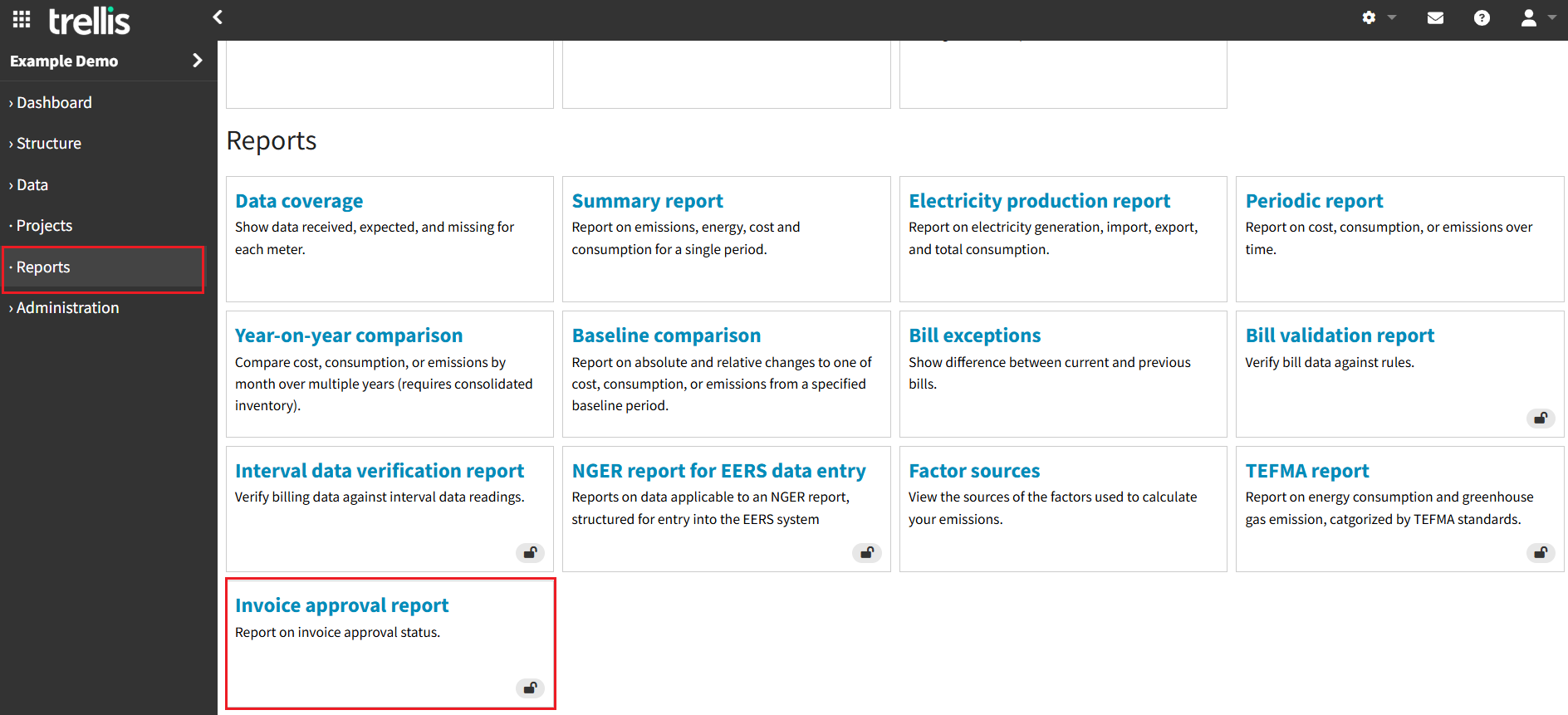
In here, you get a detailed overview of all invoices requiring review and approval within the system.
Tracking Invoice Status
-
Monitors all pending approvals in one centralised view
-
Shows near real-time approval status for each invoice
-
Showcases time-sensitive items (Near and Over Due) requiring attention
Financial Oversight
-
Provides visibility of all utility expenses across multiple facilities
-
Enables monitoring of both large and small transactions
-
Helps prevent missed payments through due date tracking
User Controls
-
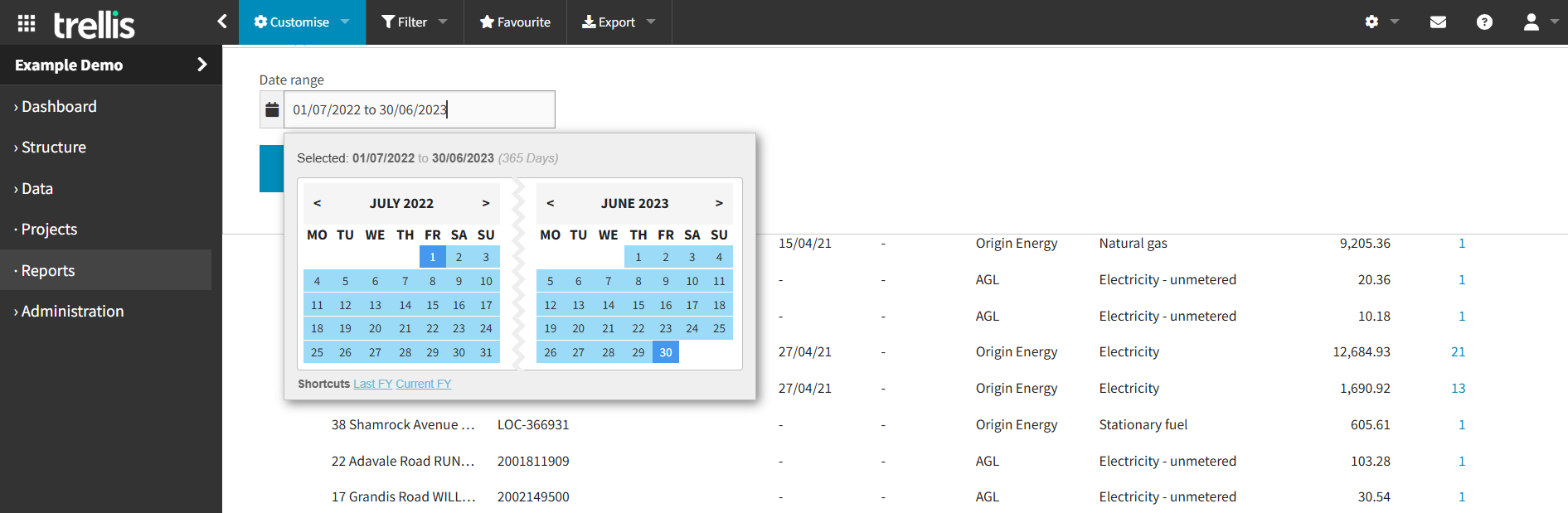
Offers customisable view of different periods
-
Includes filtering capabilities for focused review
-
Supports favorite configurations for frequent users
-
Allows data export for further analysis
Getting Notifications when New Invoices Require Your Approval
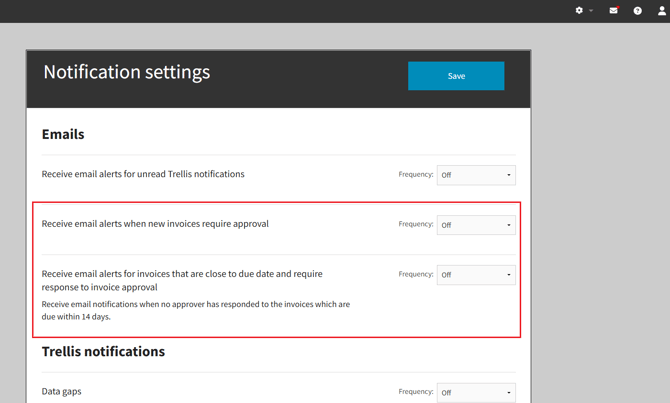
If you are assigned as an Invoice Approver for any meter, you can enable notifications alerts to be sent directly to your email when:
-
A new invoice for your assigned meter requires approval (approval is pending from at least 1 approver); and/or
-
An invoice for your assigned meter is within 14 days of the due date and still requires approval.
We recommend that all Invoice Approvers enable notifications as soon as they have been assigned responsibility approving invoices for any meter.
To enable your notifications:
-
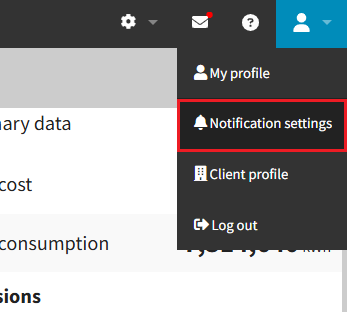
Navigate to the profile icon on the top right side of your screen
-
Select Notification Settings
- Select the desired frequency of notifications based on your requirements.
-
-
Off (no notifications will be sent)
-
Daily - the first alert email will be sent the day after this setting was enabled.
(Ongoing behaviour: email alerts will be sent daily if invoices requiring action were received or triggered the due date threshold alert the previous day) -
Weekly - the first alert email will be sent one week from the day the setting was enabled. (Ongoing behaviour: email alerts will be sent weekly if any invoices requiring action were received or triggered the due date threshold alert the previous week)
-
Monthly - the first alert email will be sent one month from the day the setting was enabled. (Ongoing behaviour: email alerts will be sent weekly if any invoices requiring action were received or triggered the due date threshold alert the previous week)
-
⚠️ No notification is generated when a user is nominated as an approver.
- If you are nominating someone as an Invoice Approver for a meter, please follow your organisations communication procedures to ensure they are aware and can take action to set up their email alert preferences going forward.
Note: To understand more about this functionality and get it enabled, please contact our team on support@yourtrellis.com