
Skip to Video
Purpose
The Invoice Monitoring module allows users to verify that they are being billed the correct rates and amounts by suppliers. Instead of manually checking each rate and calculation, the system compares utility invoice line items against expected reference rates. A default status is assigned after initial validation, which the user can self-modify after evaluating the reasoning notes displayed.
This new tool empowers users to quickly find discrepancies in rates charged, determine their materiality, summarise the total financial impact, and export the detail as supporting evidence for follow up with suppliers or stakeholders.
Key Topics Covered
Invoice Monitoring Tutorial
Prerequisites
This module currently supports Gas and Electricity invoice validations. To enable invoice monitoring for your organisation:
-
Your energy contracts must be provided to us for setup and configuration
-
Contracts need to be processable through our system
-
Currently available for supported suppliers only
Please contact our support team to:
-
Verify supplier compatibility
-
Submit contracts for setup
-
Learn about our current capabilities and supported features
Validation Process
The system performs three essential checks on the supported line items of each invoice against the relevant contract:
Period Match: Validates that billing periods align with expected cycles for which rates are available to check against
Rate Match: Compares charged rates against contracted reference rates
Total Match: Verifies calculation accuracy and total amounts
Understanding Status Indicators
APPROVED (✓)
-
AUTO ASSIGNED if all validation checks have passed
-
No action required
FLAGGED (⚠)
-
AUTO ASSIGNED if any validation check has failed
-
Review will be required to determine cause of discrepancy and further action, if any
-
Common causes:
-
Rate changes
-
Special charges
-
Calculation rounding
-
Period discrepancies
-
REJECTED (X)
-
USER ASSIGNED, users often use this flag to indicate significant discrepancies that require communication and follow up
-
Investigation required
-
The REJECTED flag can be assigned for any reason at the user’s discretion, and is commonly used to indicate:
-
Incorrect rates
-
Billing errors
-
Meter reading issues
-
PENDING (?)
-
USER ASSIGNED, users often use this status to indicate items requiring additional verification
-
Any line items awaiting further investigation and review
-
Note that if an invoice has any line items with PENDING, REJECTED or FLAGGED status, the overall invoice status will automatically be set to INVALIDATED
Note: All line item statuses can be modified by authorised users as needed.
How Status Indicators impact Invoice Level fields
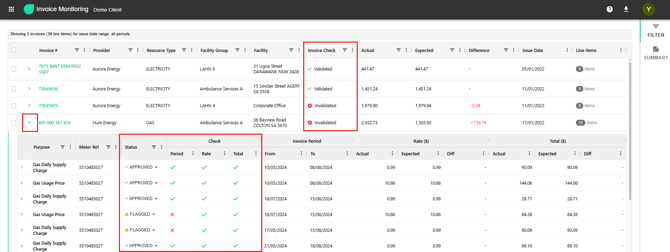
The initial main view displays a table of your data with each row representing an invoice:
-
If all line items in the invoice pass the checks (approved), the invoice check will be marked as “Validated” automatically.
-
If one or more lines in an invoice fail any of the checks (flagged), the invoice check will automatically be set to “Invalidated”, to easily identify it.
-
All line items that can be checked against available contract rules are viewable in the drop down table below the invoice, expandable by clicking the arrow.
Accessing the Module
-
Click the app switcher in the top left corner of your screen
-
Select "Invoice Monitoring Module"
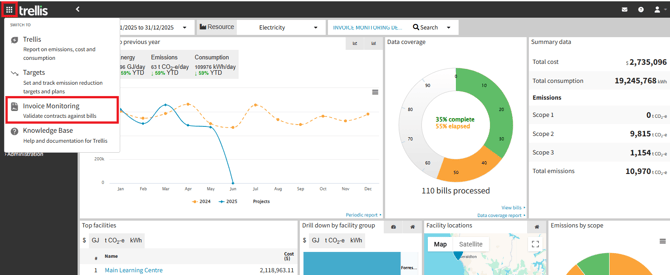
Note: If the Invoice Monitoring Module is not visible in your app switcher menu, please contact the support team to arrange access.
Filter Panel
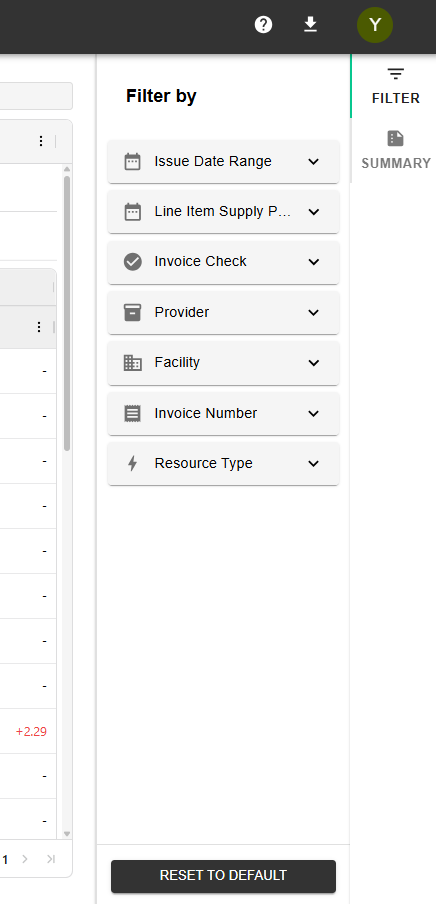
The right-hand panel contains a suite of instantaneous filters that allow you to narrow down your view of the data and focus on exactly what you need to review. You can use the “RESET TO DEFAULT” button at any time to go back to the default selections.
The items available under each filter will be determined by the available data that has been run through validation. For example, if you have 10 facilities in your inventory, but invoices only have come in for validation for 6 of those facilities, you will only see those 6 facilities listed in the filter.
Issue Date Range
-
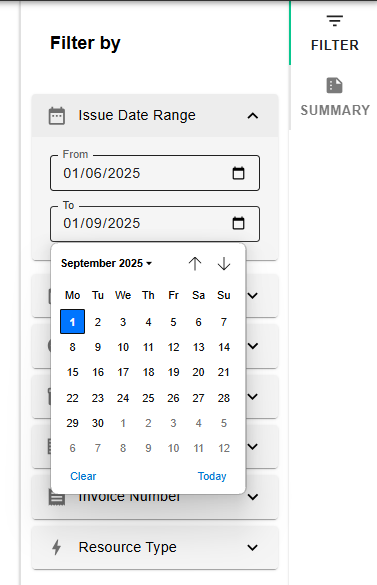
This is the primary date filter and is set to include the previous 3 months by default. This can be used to filter and constrain the data set to invoices that have been received since you last checked.
-
Customisable using From / To date pickers
Note: You might initially see no data displayed, which means there is no validated data available for the default range selected. Modify the period to a range you would have validated data for and results should appear in the main data table.
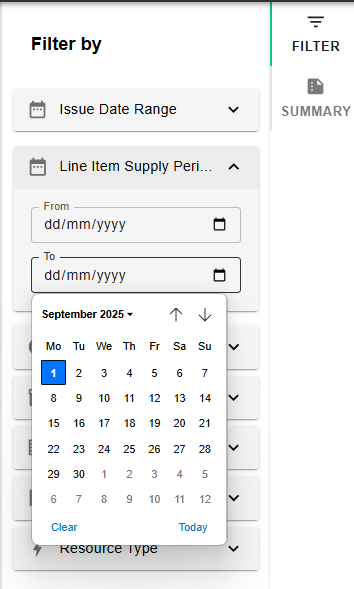
Line Item Supply Period
-
The range is blank by default. Setting a date range in this filter will hide any line items within the invoices that do not have a supply period that falls within the set range.
-
If an invoice has no line items falling within the set range, the entire invoice line will be hidden.
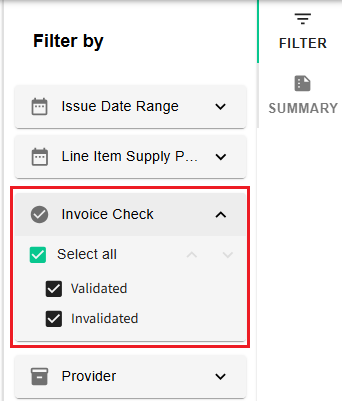
Invoice Check
-
Allows for filtering of Invoices by their overall status – Validated or Invalidated
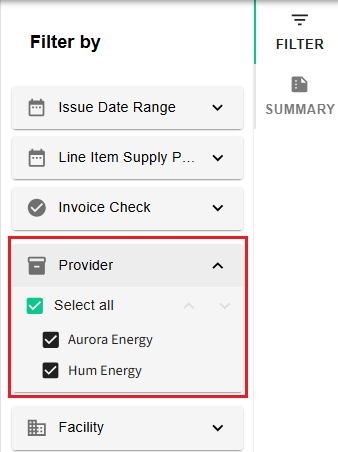
Provider
-
Filter rows by provider. Use the check box to select which providers you want displayed in the current view
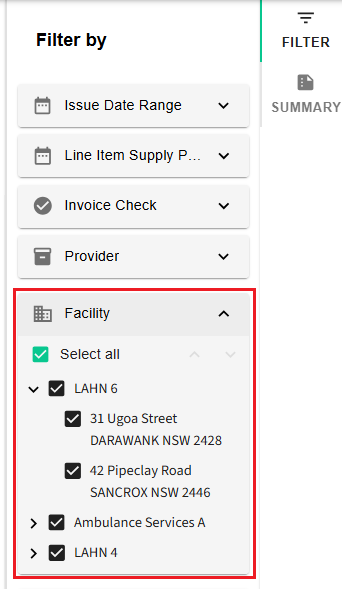
Facility
-
Filter by specific Facility Groups or Facilities as structured in your inventory hierarchy
-
Toggle the check boxes to include or exclude items in the drop down menu
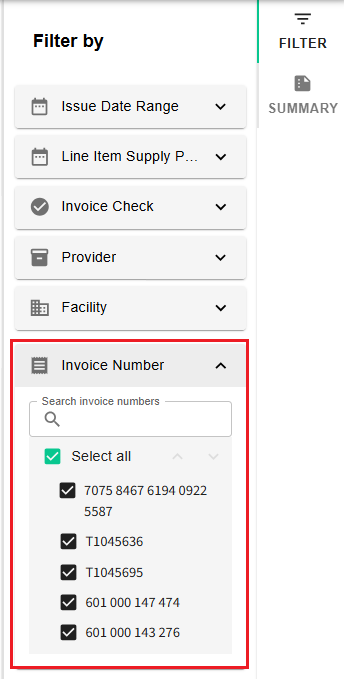
Invoice Number
-
Start typing a specific invoice number to narrow down the list
-
Multiple selection enabled
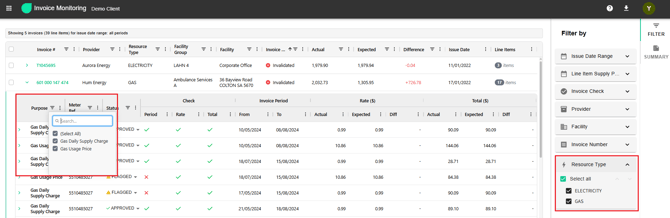
Resource Type
-
A simple filter based on main the resource types for each invoice (currently Electricity and Gas supported)
-
The specific line items are filterable within individual invoices when the invoice line item is expanded. *See further explanation below.
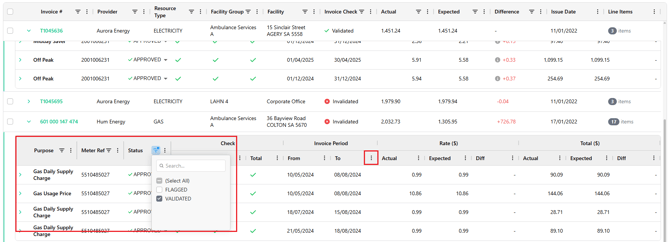
Purpose, Meter, and Status
-
Within an invoice view dropdown, columns can be filtered by clicking the funnel icon. This can be useful for consolidated invoices, allowing closer comparison of specific purpose lines, meters within the invoice, or filtering flagged rows only. A blue dot will appear against the funnel icon if the column currently has a filter active and is not displaying the full data set.
-
You can also sort by any column by clicking the 3 dots to the right of the column label, and selecting your sort order preference.
Summary Panel
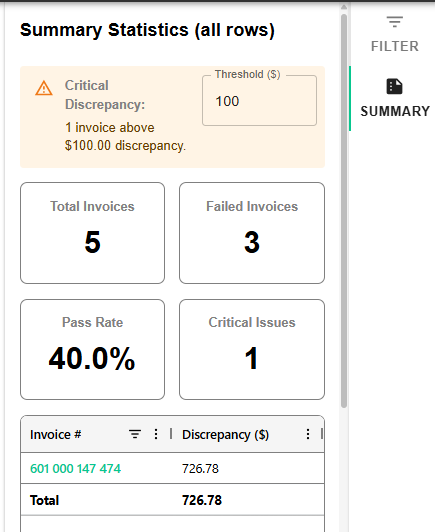
The summary panel provides an aggregated overview of your validation results, displaying key metrics designed to give you quick insights into your invoice monitoring status. The table dynamically adjusts its display based on your selection, allowing for both broad analysis and focused review of specific lines.
-
Summary table includes all rows in the current filtered data set. To see summary statistics for a narrower selection, use filters to further constrain the table contents, or select individual invoices (rows) to include using the check boxes in the main table.
-
The Critical Discrepancy panel will display any invoices in the summary panel list that have a diff greater than the threshold defined there.
-
Clicking the hyperlink of an Invoice # in the summary panel list or the main table will download the original invoice file for quick cross checking access.
-
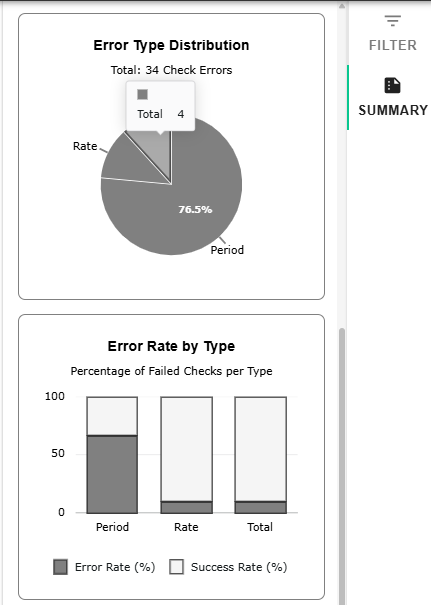
Error Type Distribution chart displays the percentage and count of each type of error (total / period / rate) out of the total number of check errors.
-
Error Rate by Type chart is an indication of which check types are contributing to the failure rate as a % of total lines checked in the applicable data set.
-
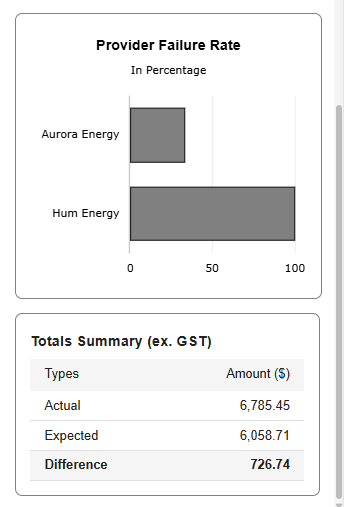
Provider Failure Rate chart is a list of all providers represented in the applicable data set, indicating the % of invoices for each which fail (marked “Invalidated” by 1 or more line items failing checks)
-
Totals Summary is a sum total of all of the invoices in the applicable data set, showing the sum total difference between actual and expected charges (ex GST)
Working with Results
Viewing Detailed Information
-
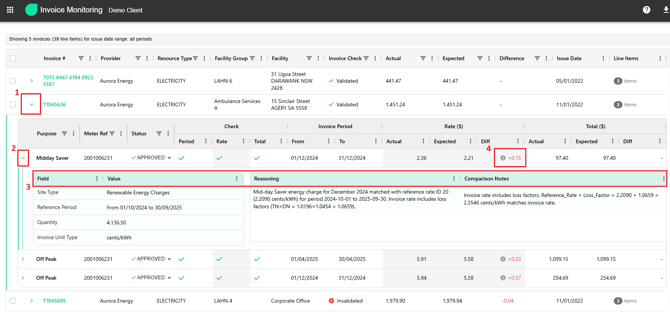
Select the desired invoice and click the drop-down arrow on the left side
-
Locate the desired line item and click the drop-down arrow on the left side again
-
Review detailed validation explanations and reasoning for the checks on each line
-
An (i) appears in the diff column if the check result is PASS but the diff is not “-”. Hover over the (i) for more information
Note: Each case receives its own unique explanation as the system analyses individual circumstances and provides specific reasoning based on the particular context of that validation result.
Modifying Status
-
Review validation details
-
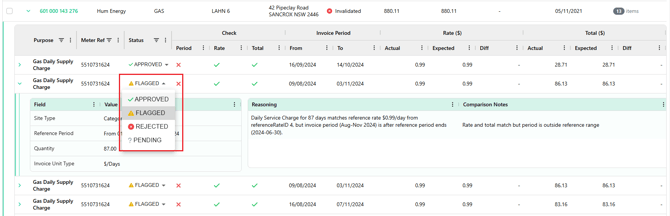
Select appropriate status based on investigation
-
Update status as needed (using the drop-down menu), the change will be saved automatically
⚠️Note:
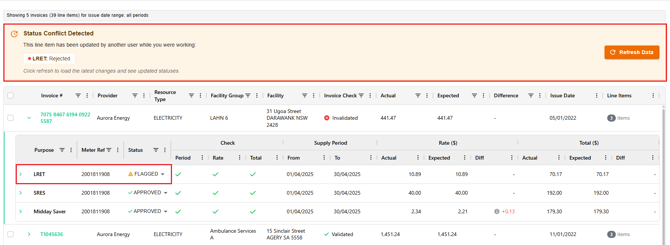
If there are multiple people from the same inventory using the tool, and they happen to update the status of the same line item at the same time, the second person will get notified with a “Status Conflict Detected” error. They can click “Refresh Data” button to see the latest updated status and make their own changes from there. This would avoid overwriting of updates and internal confusion.
Export Functionality
-
Click the Download icon in top navigation
-
Choose between:
-
Export all validation results
-
Export selected data only
-
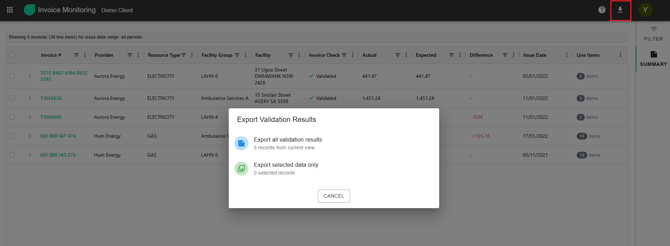
The exported file will be automatically downloaded as an excel spreadsheet.
All selected data from the table will be normalised and flattened. Each invoice line item will be represented as a single line item in the output spreadsheet, with invoice number, provider and other top level columns included in that row. The sub line item details such as the check result reasoning are also flattened in line, allowing you to extract any single line of the spreadsheet as comprehensive evidence of errors for your supplier.
The Invoice Monitoring workspace is most useful for filtering, exploring and finding anomalies directly in your browser. The export data sheet allows you to access all values in a flat grid and explore the output with other useful excel functions such as pivot tables.
Example export columns A-K

Example export columns L-W

Display Settings
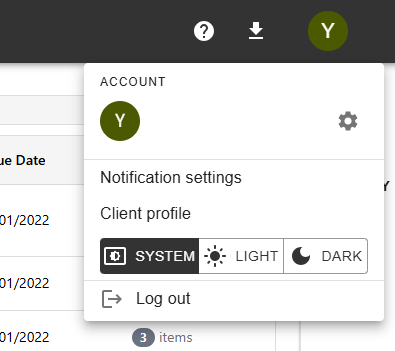
Select your preferred theme:
-
System (follows system settings)
-
Light mode
-
Dark mode
For any additional assistance or access requests, please contact support.