
Overview
The meter splitting functionality allows organisations to proportionally allocate utility usage, costs, and emissions from a single parent meter to multiple related meters. This is particularly valuable in scenarios where multiple departments or tenants share a utility meter, enabling accurate cost distribution and emissions reporting. Integrated within the existing facility structure in Trellis, this feature ensures seamless and flexible allocation without disrupting the core system functionality.
Key Parameters
-
Metering Reference: A unique identifier used to track utility consumption, appearing on utility bills and in reporting. Multiple metering references can be linked to a single parent meter.
-
Parent Metering Reference: The primary reference from which other metering references are split.
-
Split Percentage Categories
-
Sources with Import or Export or Production: Allocations of source data where import (consumption), export (energy exports to the grid), or production (solar panels, co-generation systems, etc.) amount is not equal to 0.
-
Other sources: Allocations of source data where import, export, or production amount is equal to 0, like supply charges or service fees.
-
Note: The total allocation across all split meters must equal 100%. If the total exceeds this limit, an error message will be displayed. If it falls below 100%, the system will wait for additional allocations before proceeding. Bills cannot be processed and allocated until the meter split percentages fully add up to 100%.
Clarifying Note on Split Percentages
When setting up meter splits, the split percentages must be configured separately for two categories:
-
Sources with Import or Export or Production
-
Other Sources
Each of these categories must independently total 100% across all split entries defined for a single parent meter. This means:
-
If you are creating multiple meter splits for a parent meter, the combined total for field 1 (Import/Export/Production) across all child meters must be exactly 100%.
-
Separately, the combined total for field 2 (Other Sources) across all child meters must also be exactly 100%, if applicable.
-
These two fields are independent and may or may not both be used, depending on what’s present in the invoice.
Example:
If you are splitting a parent meter (Meter A) into three child meters:
|
Parent |
Child |
Import/Export/Production % (Field 1) |
Other Sources % (Field 2) |
|---|---|---|---|
|
A |
A |
10% |
0% |
|
A |
B |
50% |
60% |
|
A |
C |
40% |
40% |
-
This is valid because field 1 adds up to 100% (10+50+40)
-
Field 2 also adds up to 100% (0+60+40)
-
If either total is less than or greater than 100%, an error will be raised or processing will be paused.
Note: You must include a split where the parent is listed as both the parent and child (e.g., A → A) if the parent retains any share of the allocation.
Limitations
-
Historical data remains unaffected by split configurations.
-
Meter splitting will not be applied to manual data imports; including bulk imports, edits, and new source data creations.
-
Changes to split configurations (percentages) apply only to future bill processing; previously processed data (already allocated bills) remains unchanged.
-
If split adjustments need to be reflected in past records / already processed bills; manual reallocation will be required.
Implementation Guide
ℹ️ Skip "New Meter Creation" steps if you already have all the meters needed for the split.
New Meter Creation
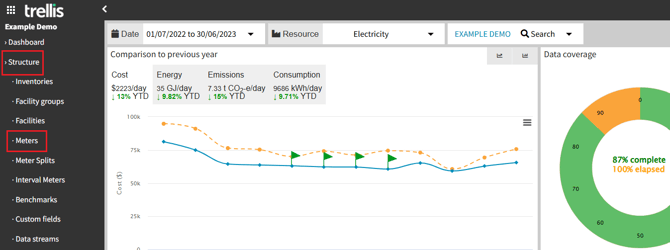
- Locate the “Structure” tab in the side navigation bar.
- From there navigate to the “Meters” page.
-
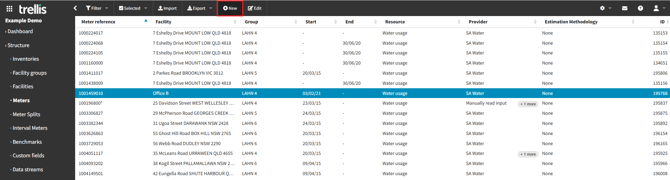
Click “New” to create new meters for your split
-
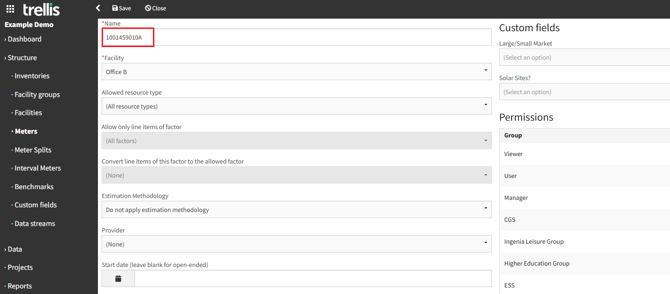
Fill in the fields as required. It is recommend to keep the parent meter name as part of the “Name” of the new meter for consistency.
-
Click “Save” and do the same process for as many new meters as you need to create.
Meter Splits Creation
-
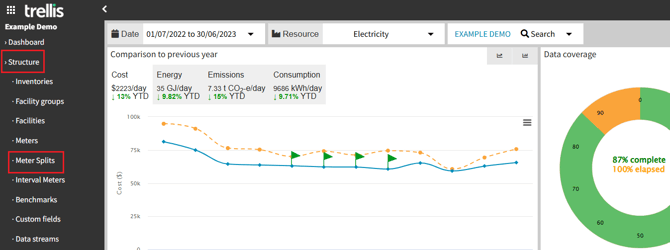
Navigate to the “Meter Splits” page.
-
In here you can create a “New” meter split, or “Edit” a previously made one.
Keep in mind: Editing an already created meter split will not impact the processed bills, and will only take effect for the upcoming bills
-
Select the parent meter and map it to the child meter (new meters if you have created)
-
Fill out the required fields based on your requirements
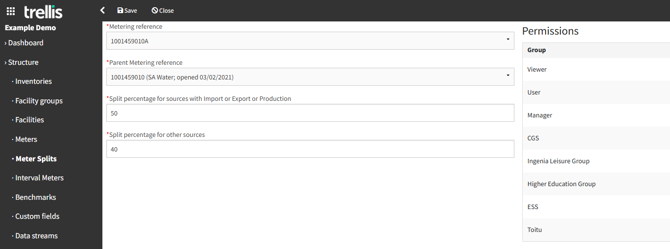
-
Click the “save” button from the top navigation bar to apply your changes
-
“Add new” to directly create another split
-
“Delete” to remove the meter split
-
“History” to check the history of the meter split
-
“Close” to exit the configuration page
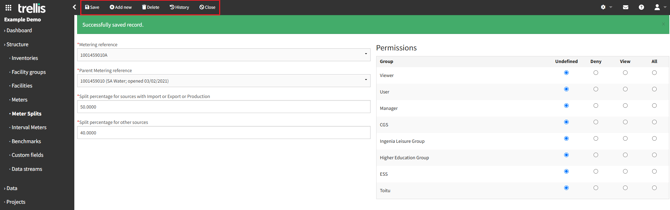
Note: Redo the above steps as many times as needed to complete your splitting and make the percentages add up to 100. (A bulk update option is not available as of now due to the feature complexities)

For any further questions or assistance regarding the feature, please contact our support team.