
Trellis uses interactive data grids in many screen layouts to allow for easy viewing, sorting and filtering of page content.
Viewing and Ordering Data
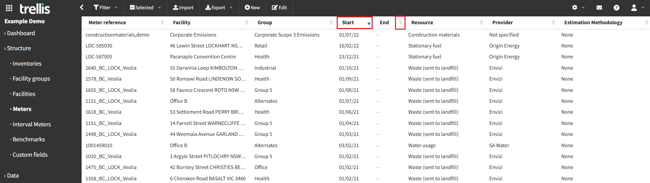
Columns on which the grid may be ordered are identified by the 
-
Click a column heading to order the data grid according to the contents of that column in ascending order. The associated icon will change to
to indicate this.
-
Click the column heading a second time to order the data grid according to the contents of that column in descending order, indicated by the
icon.
-
To change a column width, hover your cursor between two columns anywhere on the table below the header row until you see the
icon. Click and drag to change the width of the column to the left of the cursor. The minimum width is the width of the column name.
Filtering Data
To filter information shown in a data grid:
-
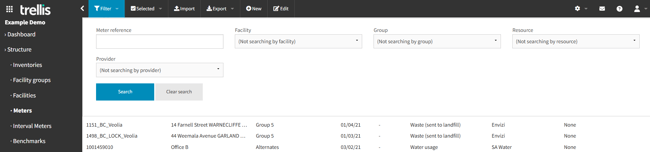
Open the Filter panel from the top bar.
-
Use the search fields available to specify the search criteria.
-
Click the Search button to update the data grid.
Exporting Data
Data grids can be exported as CSV spreadsheets. Exported data will be ordered according to the current data grid order settings.
You may export either the full contents of the data grid, or only those lines displayed by the current filter settings.
To export a data grid to a file:
-
Open the Export menu in the top bar.
-
Choose either the All data or Filtered data, depending on what set of data you want to export.
