
Overview
The Payment File functionality enables the generation of payment files commonly imported into the accounts payable systems. This feature is available to clients who have the feature enabled and a payment file format specified in their settings.
Our support team can help you get the feature enabled and set-up the specific payment file format required for your accounts payable system.
Payment Status Tracking
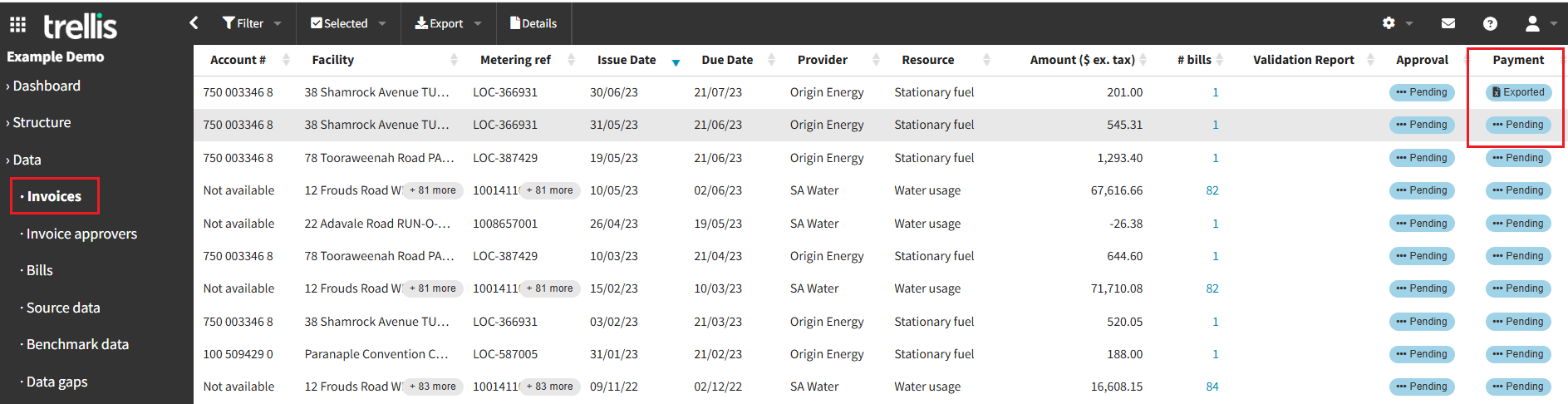
With this feature enabled, a Payment Status column is added to the Invoices Browse page. This column indicates whether:
-
an invoice is still pending an export to a payment file, or
-
has been exported to a payment file, or
-
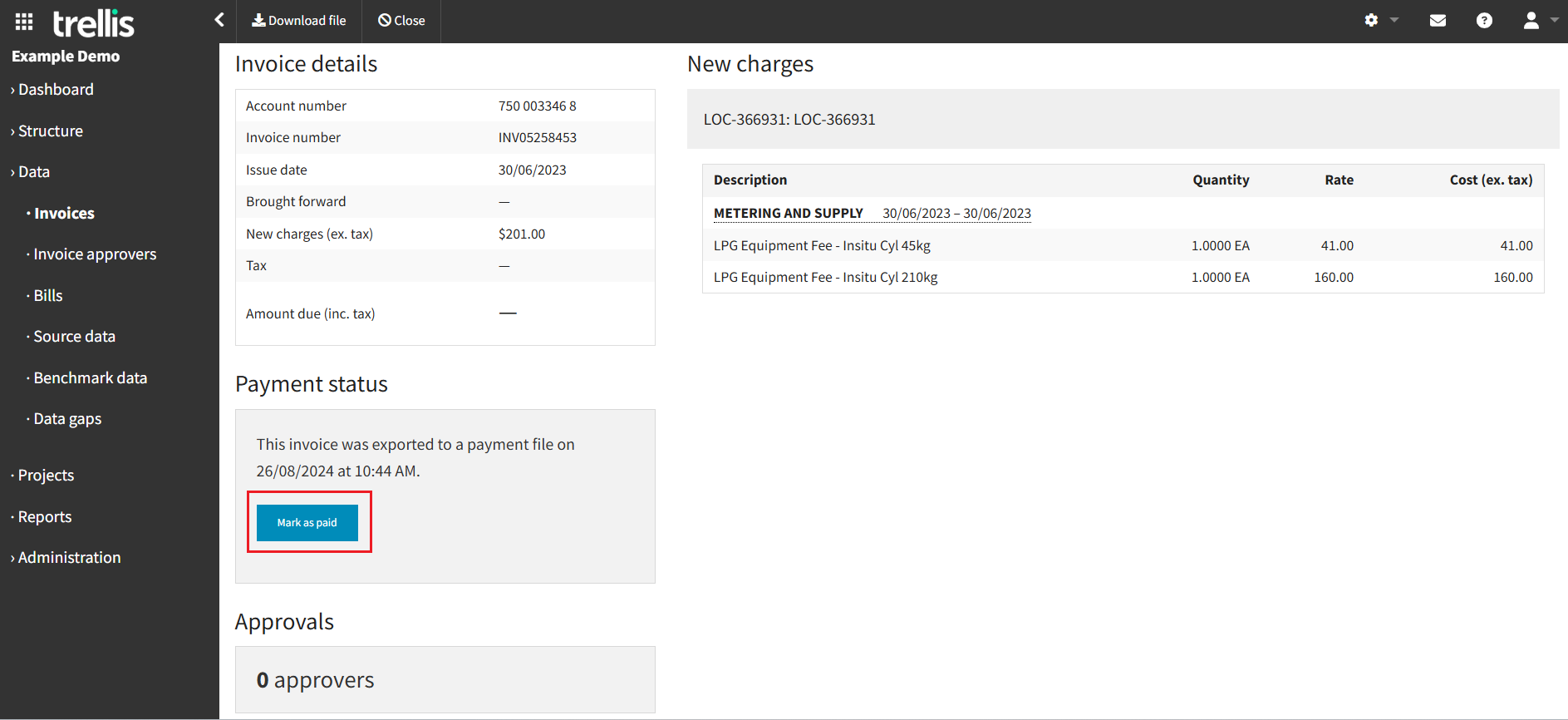
it has been paid. The status of the invoice can only be changed to paid after it has been exported, using the invoice details page.
Generating Payment Files
Payment files can be generated through the following steps:
-
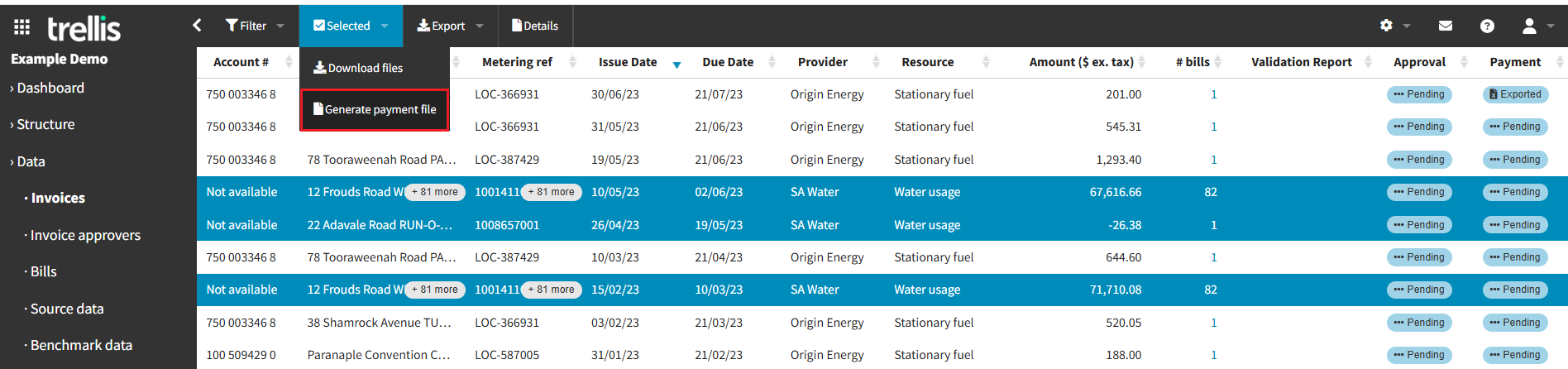
Select one or more invoices from the Invoices Browse page to be exported.
-
Click on: Selected → Generate Payment File
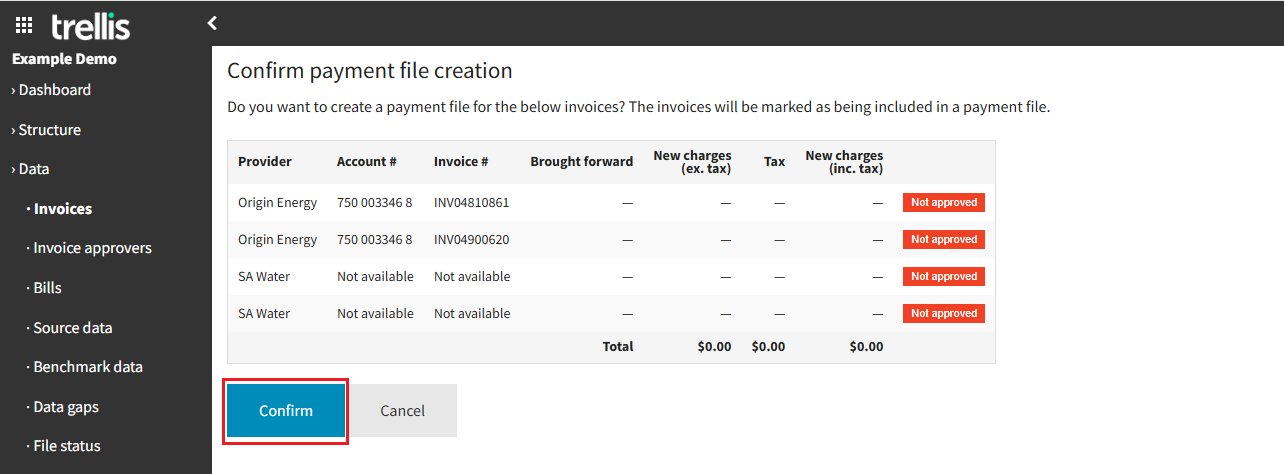
This action opens a Confirmation Page displaying:
-
A summary of selected invoices.
-
Approval statuses, if the Invoice Approval feature is also enabled.
-20250828-131421-png.png?width=880&height=453&name=image-20250508-045250%20(1)-20250828-131421-png.png)
Generating Payment Files if Invoice Approval is also enabled
-
Invoices can be included in the payment file regardless of their approval status (pending, approved, or rejected). Please follow up with nominated approvers if your internal procedures require approval in Trellis before payment. The Approval Status is a visual indicator only and does not prevent Payment Files being generated.
-
If the Invoice Approval feature is not enabled, the Approval Status column will not appear on the Confirmation Page.
Exporting and Downloading Payment Files
- Click Confirm in the payment file creation window to commence file generation. The payment status on the invoice browse page will update indicating the that invoices have been exported.

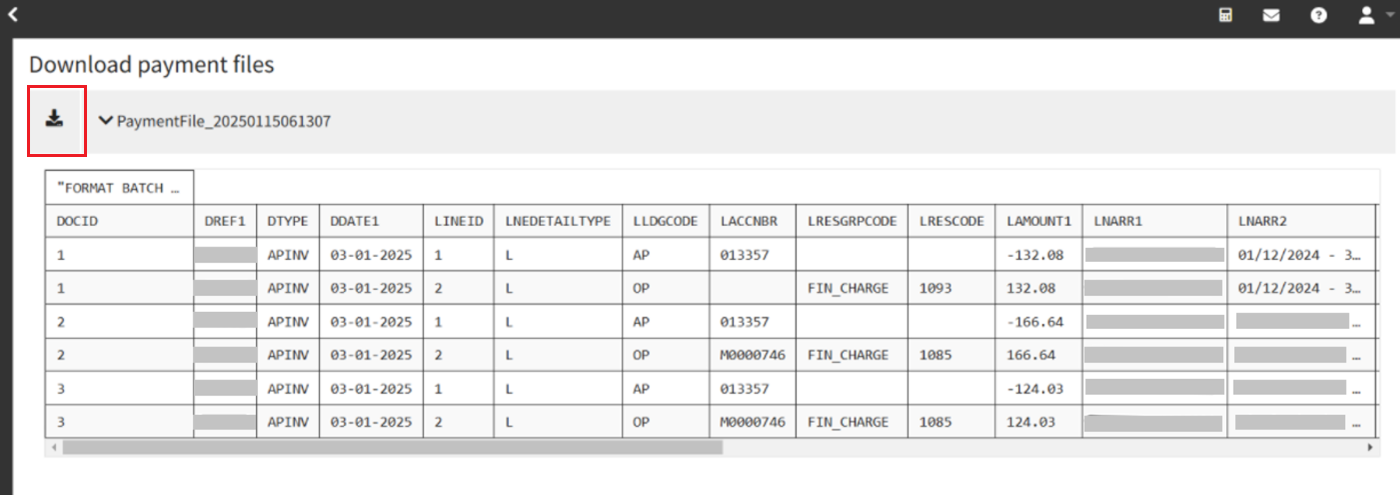
- A download button for the payment file generated will be created, with a preview of the file displayed below. Click the button to download the payment file as a CSV.
- Payment file formats are customised for each client, and some clients may have multiple payment files available (e.g., separate files for debits and credits).
Note: To understand more about this functionality and get it enabled, please contact our team on support@yourtrellis.com