
Permission Structure Overview
Trellis uses a hierarchical permission structure, where access can be defined at multiple levels:
-
Client level
-
Inventory level
-
Facility Group level
-
Facility level
-
Meter level
Default User Groups
Three default groups (usually created by Trellis during onboarding)
|
Default Group |
Purpose |
|
Viewer |
Read-only access |
|
User |
Data entry and editing |
|
Manager |
Full control |
Standard Access Level and Permissions
|
Level of Access |
Permitted To |
Not Permitted To |
|
Viewer |
Select inventory to view View all data stored within the system View all “Analysis and Reporting” functions Export data from the system either as a table or as a graph |
Add/Edit facility groups, facilities, resource usage or benchmarks Add/Edit resource usage data or benchmarks Add or change other user access Add/Edit the Client Information Add/Edit any pdf read data |
|
User |
As above, additional privileges include: Add/Edit facility groups, facilities, resource usage or benchmarks Add/Edit resource usage data or benchmarks |
Add/Edit other user access Add/Edit the Client Information Add/Edit any pdf read data
|
|
Manager
|
As above, additional privileges include: Add/Edit other user access Add/Edit the Client Information Add/Edit any pdf read data |
Create new users who are outside of their domain. To do so, please reach out to support |
Custom User Groups
Custom groups can be created and assigned permissions exactly like the default groups. Permissions can be managed by CS during onboarding or later by client-side Managers.
Permission Types
|
Setting |
Meaning |
|
🔵 All |
Full access, can read and write at all levels |
|
⚫ View |
Read-only access |
|
🔴 Undefined |
|
|
⛔ Deny |
Explicitly denies access |
Permission Inheritance
How it works
-
System checks up the hierarchy until it finds a defined permission
-
If no permission is defined at any level, access is denied
-
Works similar to a file system hierarchy
Client
├── Inventories
│ ├── Facility Groups
│ │ ├── Facilities
│ │ │ ├── Meters
├── User Groups
│ ├── Users
Example
Client: Deny
├── Inventory: 🔴 Undefined
├── Facility Group A:⚫ View
│ └── Facility A.1: 🔴 Undefined
├── Facility Group B: 🔵 All
│ └── Facility B.1: 🔴 Undefined
└── Facility Group C: 🔴 Undefined
└── Facility C.1: U🔴 Undefined
Result
-
Facility A.1 → Inherits ⚫ View from Facility Group A settings:
-
The user has read only access to all data records from Facility Group A and below (inclusive)
-
The user can not add or edit any data records from Facility Group A and below (inclusive)
-
-
Facility B.1 → Inherits 🔵 All from Facility Group B settings:
-
The user can view, add and edit any data records from Facility Group B and below (inclusive)
-
-
Facility C.1 → All levels 🔴 Undefined → Inherits ⛔ Deny from Client level settings:
-
The user has no access to any records from Facility Group C and below (inclusive)
-
The user can not see Facility Group C at all
-
Think of this like a file system. If a folder (e.g. Facility) doesn't define a permission, the system climbs up to the parent folder until it finds one.
There's no need to define permissions for every single entity, for example if you had a user group with permissions to only one facility group, you would leave all permissions undefined, no need to change anything as default is undefined (default = denied) except for that one facility group which you would set to view or all as required.
Permissions Management
Note: Keep in mind the below functionality is typically available to users with “Manager” permissions only, unless specifically modified.
Create custom user groups
-
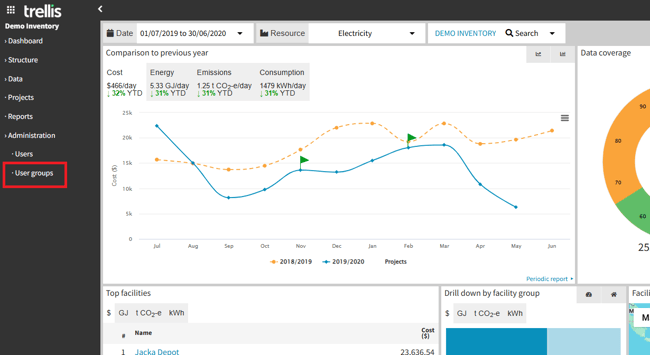
Navigate to the “User groups” tab
-
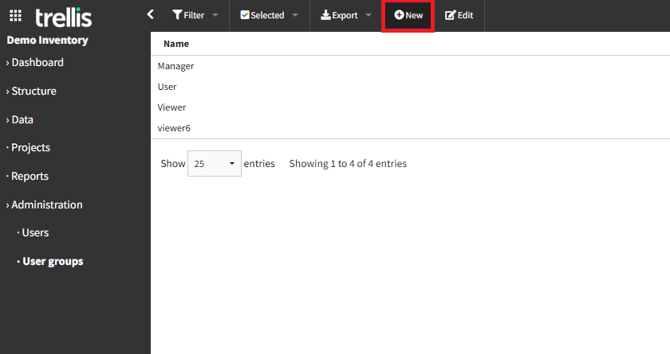
Click “New” button to create a new custom user group
-
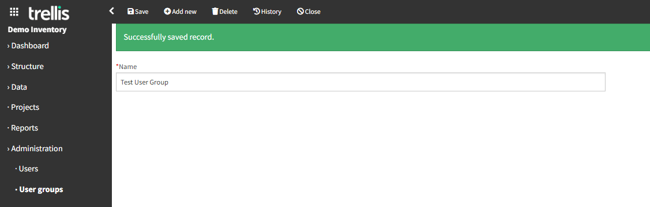
Fill out the required field and click “Save”
Configure permissions at various levels
-
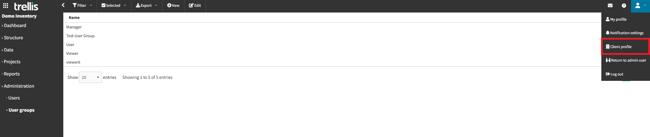
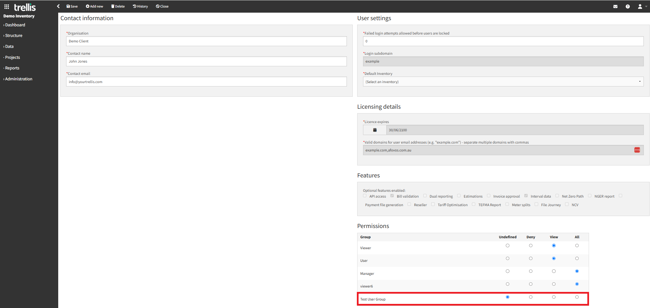
Client level - Navigate to “Client profile” tab using the drop down menu located on the top right corner of the page
-
Permissions at this level can usually be left as default (undefined), which will work as denied access if reached to on the hierarchy
-
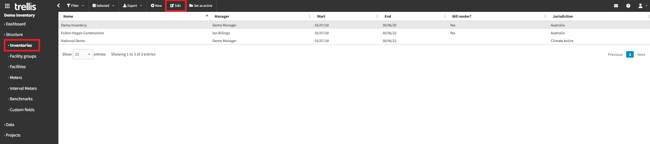
Inventory level - Navigate to the “Structure” tab and select the “Inventories” tab
-
Select the inventory that would need permissions updated and click “Edit” button
-
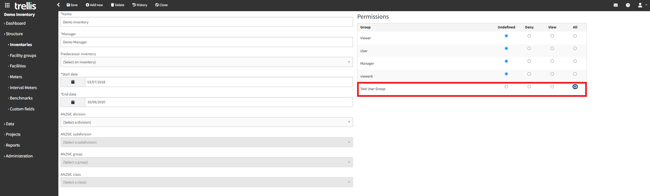
In here you can select the relative permissions based on your requirements for the custom group created and the access level they would need to each inventory
-
This process can be repeated for any other inventory that this user group would need access to
-
A similar process can be done for the more granular data levels including facility groups, facilities, and meters.
Note:
-
Setting permissions for each entity is optional and can vary on a case-to-case basis and based on the needs and requirements.
-
As mentioned before, If left undefined, the system will keep going up the hierarchy / chain until it finds a defined permission. If at the client level stated as undefined it means deny permission.
-
Managers can define different permissions per inventory or facility group if needed. This includes denying/restricting access to specific items within a hierarchy that a user has higher level access to.
-
To assign specific users to a user group, read our documentation on new user creation.
Best Practices Summary
- Start by assigning permissions at the highest relevant level (e.g., Client or Inventory)
- You do not need to set permissions for every level, define only where needed. Permissions checks proceed up the tree from the entity a user is attempting to access until they find a permission which is not 'undefined'. That permission is then applied.
- Use “Undefined” where inheritance is appropriate. If all permissions for a group are undefined, they will be denied access by default.
- Managers can take over custom group creation and permission control after first CS setup.
- Always review permission inheritance before assigning granular access.
- All user groups are treated equally. Permissions alone determine what they can or cannot access.
- Nothing is hardcoded; permissions are fully configurable at any time without engineering help.
- For help with client-specific configurations, reach out to the Customer Success team.