This documentation focuses on features specific to the Baseline Comparison Report. For information about standard reporting capabilities (like customisation, filtering, exporting, etc.), please refer to the General Reporting Guide.
Report on absolute and relative changes to a metric of interest between a specified baseline period and a comparison period.
✅ This report can be useful if you want to:
-
Review on one metric (cost, consumption, emission, etc.) in a quick rolled up view for a specific date range within one inventory → Absolute View
-
Compare multiple inventories on different metrics for the same period → Relative Comparison
-
Compare one inventory’s performance on one metric in different date ranges → Relative Comparison
Use the Baseline Report to compare a base period (your inventory) to another period so you can measure progress on emission reductions, cost, or performance after initiatives.
Default View
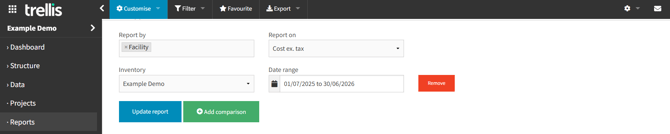
The report initialises with the following settings:
-
Granularity (Report by): Facility level
-
Metric (Report on): Cost
-
Inventory: Your default or sole inventory
-
Date range: Current financial year
Modifying Default Selections
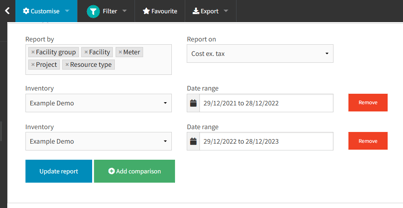
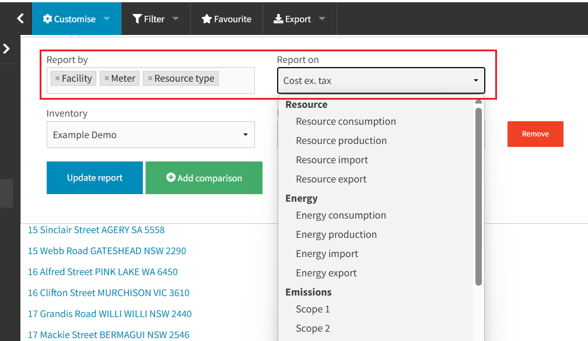
- Select the dimensions you want to "Report by" and the single metric you wish to "Report on" in a result column from an extensive list of options
-
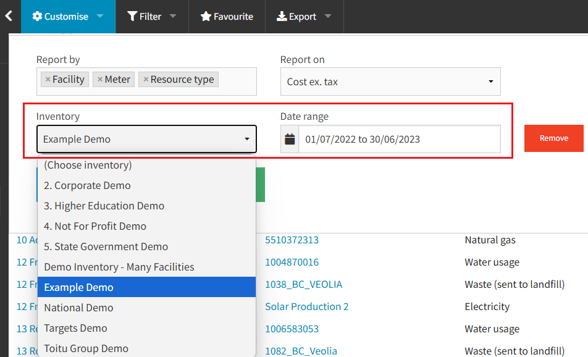
Select from the list of your Inventories (available for clients with different inventories)
-
Pick the specific Date range you would want to report on
- Click “Add comparison” button to insert a new row for comparison. Here you can select a different inventory and the same date range, or the same inventory with a different date range. You can add as many rows as needed, with the specifications that would suit your reporting requirements.
- Click the “Update report” button to apply your changes to the view.
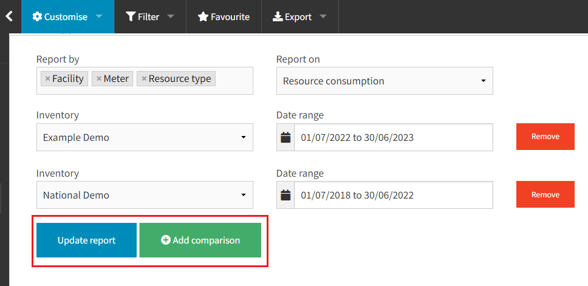
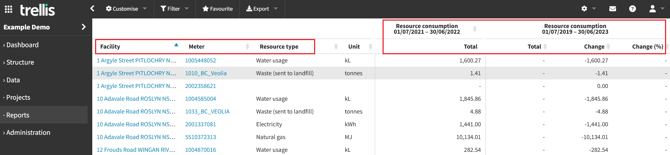
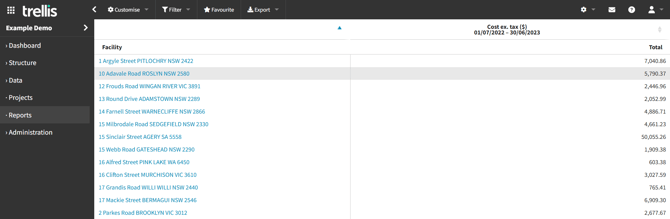
The resulting chart will display your selected dimensions as columns on the left hand side, with breakdowns as selected. The right hand side of the chart will display a column for each comparison set, with the baseline as the first column, and any additional columns to the right. Each comparison set displays a "Total" value, a "Change" value (representing the difference between the corresponding Total and the baseline Total), and a "Change (%)" value (representing the % difference between the corresponding Total and the baseline Total)
Baseline Comparison Report x Projects
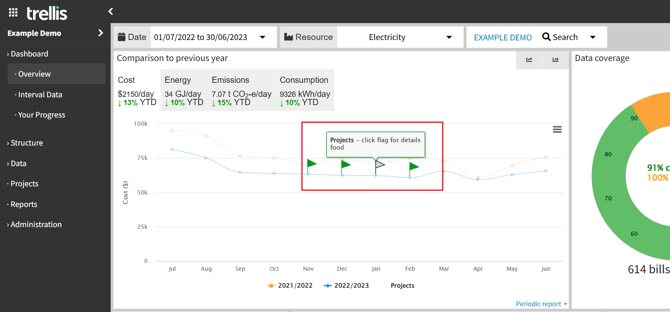
It’s possible to quick-access a Baseline Comparison report relating to an implemented project via the dashboard flags.
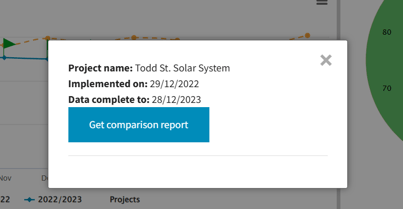
From the dashboard, click on any of the flags (each indicating a project in the inventory) displayed in the comparison graph, to directly access the comparison report.
Your view will be specifically customised with settings that match the project definitions and help you compare / analyse the project’s performance / impact. This includes auto selecting date ranges before and after the project implementation.