
This documentation focuses on features specific to the Data Coverage Report. For information about standard reporting capabilities (like customisation, filtering, exporting, etc.), please refer to the General Reporting Guide.
The Data Coverage Report provides visibility into data completeness across all meters, showing what data has been received, what's expected, and what's missing for each meter in your inventory.
✅
Use Data Coverage Report to check if your data is complete and continuous at the meter level. It answers the question:
“Do I have continuous data for every day of the month?”
Important note
This methodology assumes continuous billing and usage, so it works best for:
-
Electricity and gas usage
-
Other continuously metered resources
It may not be appropriate for:
-
Fuel purchases
-
Travel
-
Certain Scope 3 categories with ad‑hoc consumption or charges
Default View
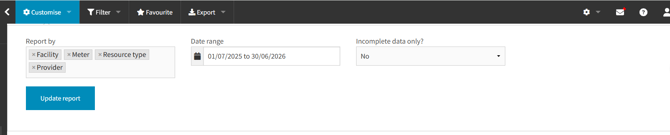
This report always displays data at the meter level to ensure accurate coverage tracking. While other reports allow different aggregation levels, the Data Coverage Report maintains meter-level detail regardless of “Report by” selections. However, your “Report by” choices will determine which columns are visible in the report.
By default, the report:
-
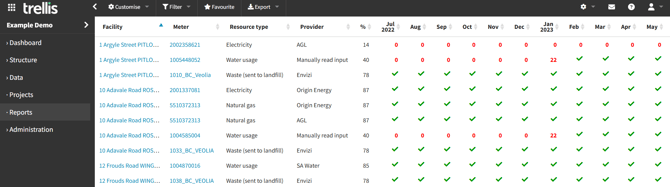
Shows Facility, Meter, Resource Type, and Provider columns
-
Selects the current financial year as date range
-
Includes all data states (complete and incomplete)
Coverage Indicators
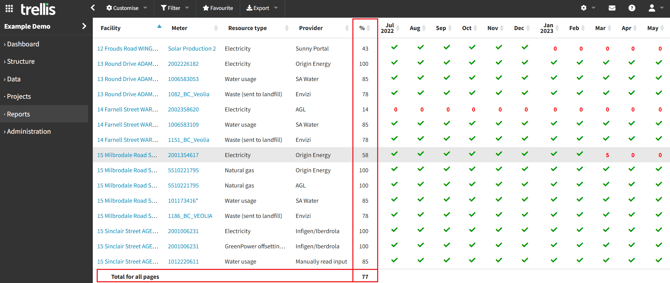
Percentage (%)
-
Calculation: (Number of days with data (covered) / Total days (defaulted to current financial year = 365) in selected period) × 100
-
Shows overall coverage for the period
Status Symbols
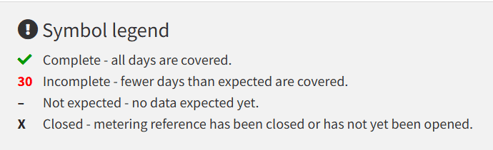
The symbol legend at the bottom of the page explains the meaning behind each of the icons / numbers displayed in the report.
-
[✓] Complete: All expected days are covered
-
[Number] Incomplete: Shows number of days with data in that month if a;; expected days are not covered
-
[-] Not expected: No data anticipated for this period based on the billing cycles / patterns, or showing months in future
-
[X] Closed: Indicates either a closed meter or periods before a meter was opened, where no data would be available in the system.
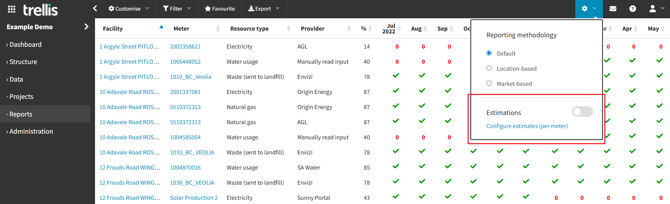
This report supports usage of the the estimations feature, if enabled. For more information about the feature and how it impacts the way data is displayed in this report, please refer to the estimations documentation.
Data Gaps Notification
You can receive a notification providing a summary of existing data gaps within your Trellis data.
For detailed information about each notification type and a guide on how to enable each, please refer to their relative documentation.