
This documentation focuses on features specific to the Periodic Report. For information about standard reporting capabilities (like customisation, filtering, exporting, etc.), please refer to the General Reporting Guide.
Periodic Report helps you compare changes over time (monthly, quarterly, yearly). The report has a variety of built in measures and metrics to explore cost, consumption, or emissions over multiple time intervals in your data.
✅ For Sustainability Managers
Use Periodic Report to understand how your footprint evolves.
Examples:
Annual emissions per asset
-
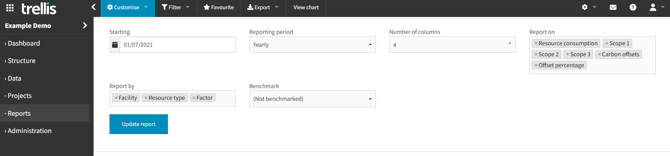
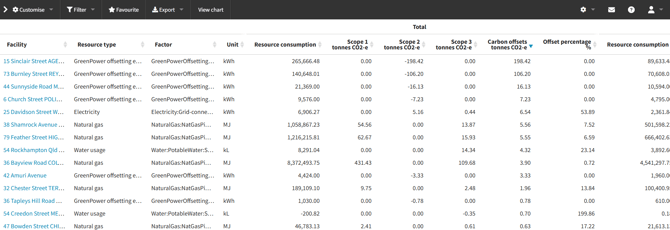
View total emissions by scope (1, 2, 3, offsets) and by facility, resource type, and factor
-
Frequency: Yearly (for example from 1/7/2021, yearly)
-
Use this to see how your footprint is changing over time and where it is concentrated.
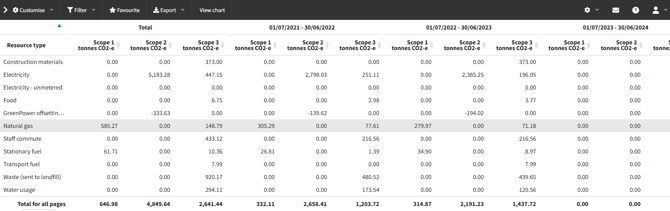
Annual emissions per resource
-
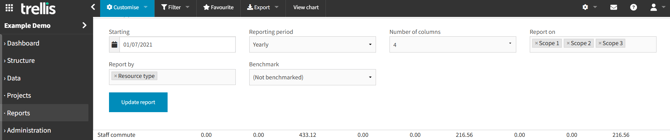
View total emissions by scope and resource
-
Frequency: Yearly
-
Use this to compare the impact of different resource types year‑on‑year.
✅ For Facilities Managers
Use Periodic Report to monitor assets and budgets.
Example:
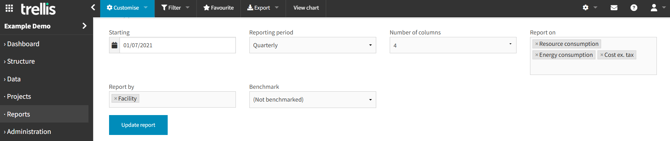
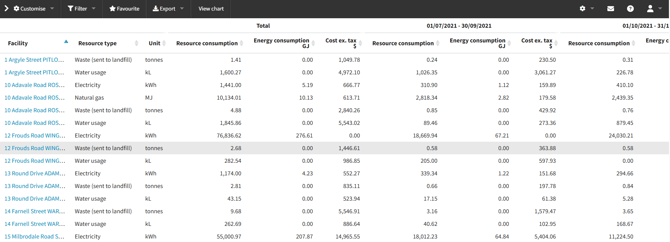
Quarterly cost and consumption per facility
-
Frequency: Quarterly (for example from 1/7/2021)
-
Metrics: Resource consumption, energy, and costs
-
Use this to:
-
Track how facilities are performing over time
-
Monitor progress against budget
-
Identify facilities with unusual consumption or costs
-
✅ For Finance / Accounts Payable
Use Periodic Report to check for unusual costs or performance issues.
Example:
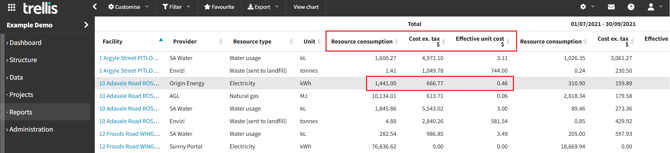
*Effective unit cost and daily averages
-
Metrics: Effective unit cost, average daily cost, average daily consumption
-
Use this to:
-
Spot outliers where costs or usage are unusually high or low
-
Decide whether to review supplier agreements
-
Decide whether to investigate asset management or operational issues
-

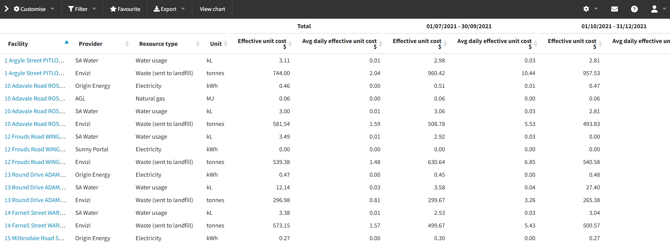
*Formula: Effective unit cost = Cost ex. tax / Resource consumption
💡Other tips for leveraging the Periodic Report
-
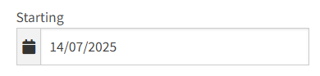
The “Starting” date picker nominates what the first period column will be in the report
-
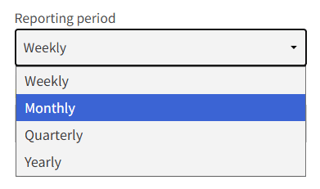
Select the desired time intervals from the “Reporting period” drop down
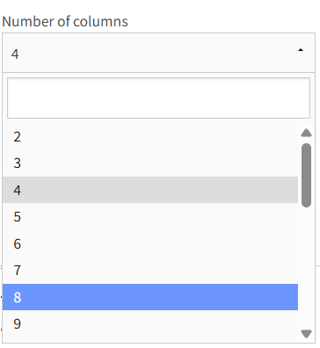
- Select the “Number of columns” from the drop down to select the total number of periods to compare. ⚠️The maximum number of periods is 24, but we recommend keeping this between 4-12 for optimal performance and report load time.
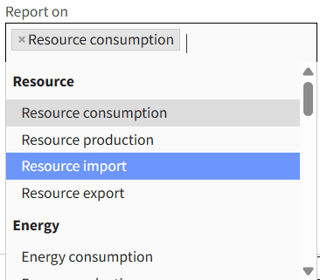
- Select “Report on” to choose one or more metrics to include in the report. There are a large variety of measures in both aggregate (eg. total consumption) and calculated (eg. avg daily cost) you can explore.
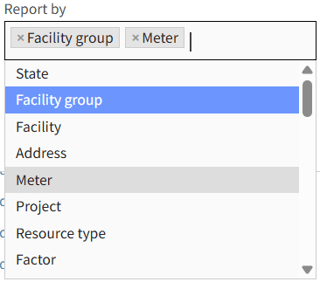
- Select “Report by” to control the granularity of the report.
If your report is taking a long time to load, try to reduce the customisations. Every “Report by”, “Report On”, “Number of columns” and “Reporting period” added increases the total number of report columns.