This documentation focuses on features specific to the Summary Report. For information about standard reporting capabilities (like customisation, filtering, exporting, etc.), please refer to the General Reporting Guide.
Use this report to track emissions, energy, cost, and consumption for a single period.
The Summary Report provides a detailed overview of your environmental and financial metrics for a selected period, including emissions by scope, energy consumption and production, total costs, and resource consumption.
✅ Use Summary Report when you want a high‑level snapshot such as:
-
Top emissions by category and emission factor
(for example: resource type + factor)
-
Top facilities by cost, energy, or emissions
-
Largest suppliers by spend or consumption
This is a good first stop when you want to quickly answer “What’s driving my footprint and costs this period?”
Default View
-
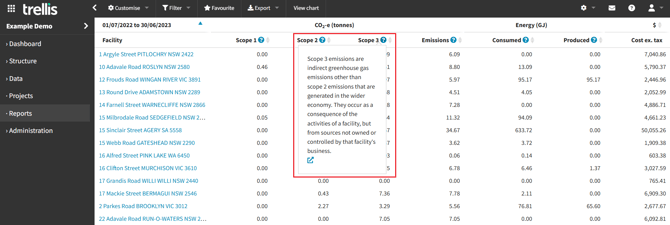
Primary Display: Facility-level data
-
Time Period: Current financial year
-
Key Metrics:
-
Emissions (CO2-e tonnes) by scope
-
Energy consumption and production (GJ)
-
Total cost ($)
-
Hovering over the ? in the heading columns will display relevant information for each and links to the relative regulations / guidelines
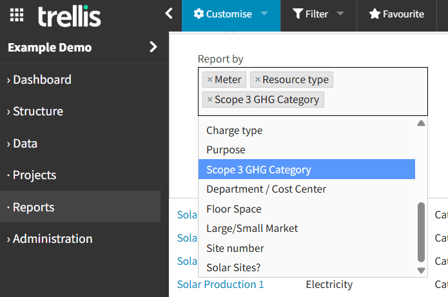
You can apply customisations, such as adding dimensions or aggregating at different levels, by selecting from the options available in the customise tab.
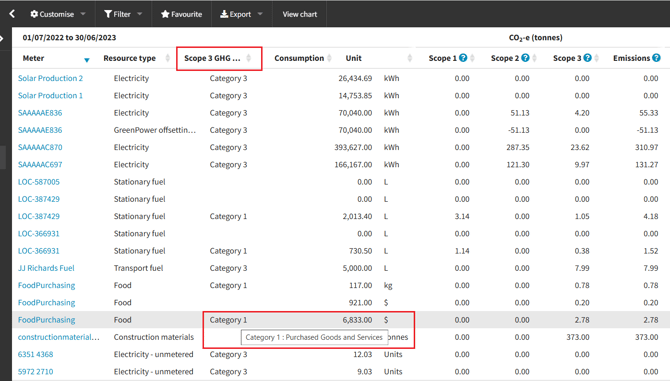
One useful example illustrated below, is adding the “Scope 3 GHG Category”, which will allow you to categories your scope 3 emissions based the GHG protocol standards.
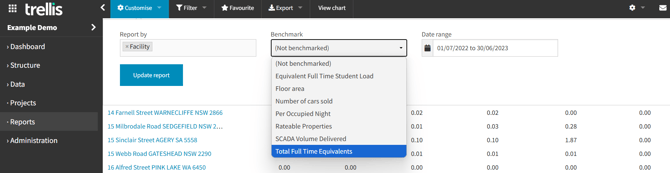
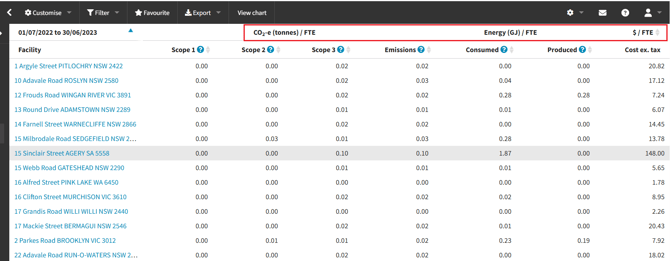
Select a benchmark (if available / applicable), to modify the results shown in accordance to your benchmark metrics.
Estimations
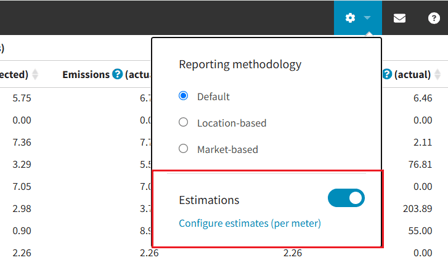
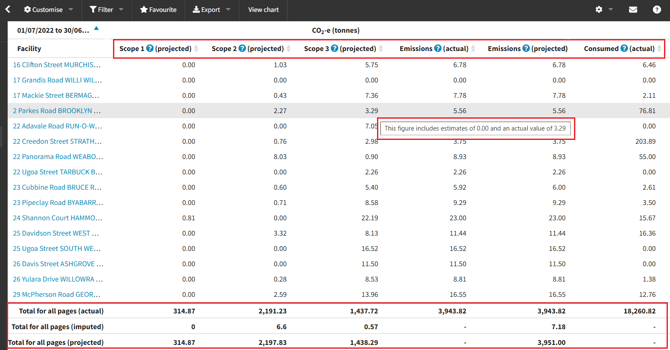
Estimations can be enabled for this report using the the toggle located in the reporting settings at the top right corner of the page.
-
Enabling estimations adds additional columns to the report view, displaying actual values alongside the projected total values (summing actual and any estimated values together).
-
Hover over a value in the (projected) columns to see the exact estimated and actual amounts which make up the value shown in the data grid.
-
The total actual, imputed (estimated), and projected amounts will be displayed at the bottom of the table. For more information about each of these options or the estimation feature, please refer to the estimations documentation.
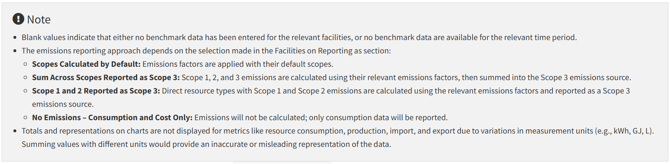
Refer to the “Note” section for further information / guidelines on the report.