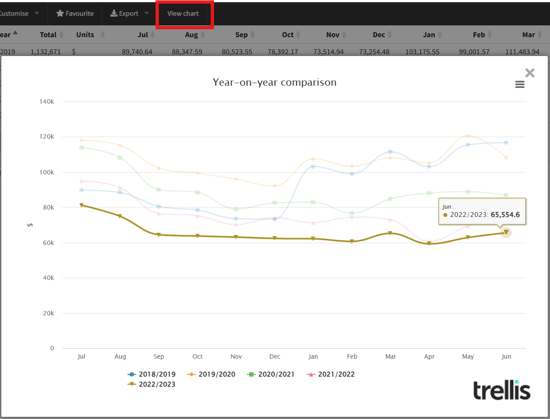
This documentation focuses on features specific to the Year-on-year Comparison Report. For information about standard reporting capabilities (like customisation, filtering, exporting, etc.), please refer to the General Reporting Guide.
The Year-on-Year Comparison Report enables users to vertically compare monthly data across multiple years, providing insights into patterns and trends over time.
✅ This report is useful for:
-
Comparing monthly patterns across years
-
Identifying seasonal trends
-
Tracking year-over-year changes
-
Analysing long-term performance
Example questions you can answer:
-
How does my electricity consumption in July this year compare to July in previous years?
-
Is there a clear trend up or down for this resource over the last 3 years?

Default Configuration
-
Report for Electricity (kWh) → Options include resource types + measurement units
-
Report on Resource consumption
-
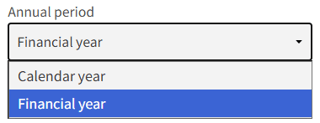
Annual period set to Financial year (Calendar year option available)
-
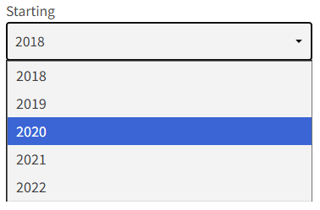
Starting year aligns with inventory start date
-
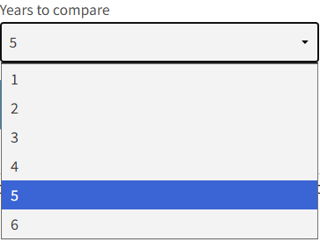
Years to compare set to 5-year selection for optimal performance. System automatically adjusts to show either:
-
Last 5 years from current date
-
Period since inventory start (if less than 5 years)
-
-
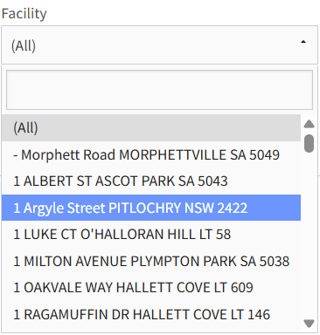
Facility selection set to All
All the default settings are fully customisable by modifying the selections from the customise menus.


Only years with actual data are shown. Any empty years (no data) since the start of the inventory, will be automatically excluded. Display in the report begins from earliest year with available data.
💡Other tips for leveraging the Year-on-Year Report
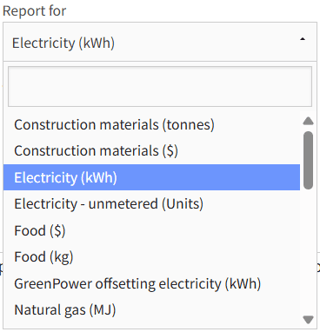
- Select your resource of interest for comparison from the “Report for” menu. This list will contain all resources for which there is data in your inventory. Only one resource at a time can be compared due to format and unit consistency requirements.
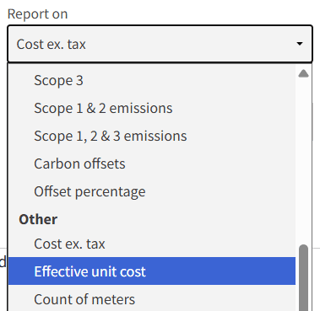
- Select “Report on” to choose a metric to include in the comparison. There are a large variety of measures in both aggregate (e.g.. total consumption) and calculated (e.g.. avg daily cost) you can explore.
- Select an appropriate “Annual period” that aligns with your reporting needs.
-
Select the “Starting” year. This will be the first data row.
- Select the desired number of “Years to compare”. Each year will be a separate row in the results table.
- If you would like to review a specific “Facility”, select it from the drop down menu (searchable and sorted alphabetically). Otherwise leave this field set to “(All)” to include data from across your inventory.
- The “View Chart” button in the contextual top bar will generate a comparison graph for your current output