
Main Elements
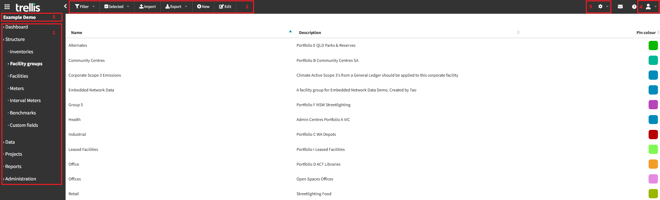
Trellis has been designed to be consistent and simple to navigate. There are several major elements of the interface which are always visible:
-
The main menu on the left, which allows navigation between different areas of the application. This sidebar can be collapsed or expanded to provide sufficient space for the content area.
-
The top bar, which contains contextual action buttons providing function relevant to the current area, such as filtering and exporting for data grids, or access to customisation options for reports.
-
The active inventory indicator, showing the name of the current in-use inventory.
-
The user menu drop-down in the top right allows the user to log out, access their user profile, and change notification settings.
-
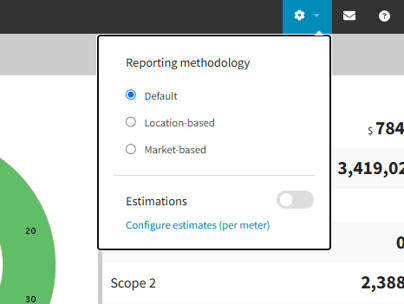
Reporting settings include the reporting methodology selection and the estimations toggle. Both features must be enabled for use, please contact support for assistance on activating them.
Current Active Inventory
All data in Trellis are assigned to an inventory. Only data from the current active inventory are displayed and reported on.
When logging in, the current active inventory will be remembered from the previous session.
If you are logging in for the first time, the inventory with the most recent data will be selected by default.
Changing the Active Inventory
To manage or report on data stored in an inventory other than the currently-active one, change the active inventory:
-
Navigate to Structure > Inventories.
-
Select the desired inventory from the list that appears.
-
Click the Set as active button in the top bar.
-png.png?width=660&height=366&name=image-20250523-032117%20(1)-png.png)
-png.png?width=660&height=131&name=image-20250523-032343%20(1)-png.png)
Reporting Settings
-
Reporting Methodology - Choose your preferred reporting approach: Default, Location-Based, or Market-Based. This is a global setting and will affect all data across your account. For a detailed explanation of each option, refer to our Dual Reporting article.
-
Estimations - Use this toggle to enable or disable estimations. This setting is not global and only applies to specific modules and reports. To learn more, see our Estimations article.
Next Steps
-
If you are logging in for the first time, continue to read more about inventories and the data managed by Trellis.
-
If you need to report on data. continue to read about reporting in Trellis.